Pulsizy user guide
Everything you need to run your clinic with Pulsizy: setting up, the daily front-desk routine, WhatsApp, prescriptions, billing and settings, with step-by-step instructions and screenshots.
1What Pulsizy does
Pulsizy is a receptionist for your clinic that works on WhatsApp, together with a simple dashboard for your front desk and doctors. It does four jobs:
- Takes bookings. A patient messages your clinic on WhatsApp, says what they need, and the assistant shows real free times from your doctors' timetables and books one. It can also reschedule, cancel and answer timings, address and fees. It never gives medical advice. Patients choose English, Hindi or Punjabi with one tap, and can type or send a voice note.
- Keeps the day running. Reminders go out before visits, patients check in by sharing their location, walk-ins get a token number, and a waiting-room screen shows who is next.
- Handles the paperwork. Write prescriptions, bill the visit, take UPI payments and see how the clinic is doing in Reports.
- Keeps you in charge. Any chat can be taken over by a person, every automatic message has an on/off switch, and an owner-only Settings area controls everything.
Who this guide is for
| You are… | Start with |
|---|---|
| Clinic owner | Set up in 30 minutes, then Settings, Messages, Subscription and Reports. |
| Receptionist / front desk | Dashboard, Appointments, Check-in & payment, Queue, Inbox. |
| Doctor | What a doctor sees, Prescriptions, Your timings, Queue. |
How to read the screenshots
All pictures use a made-up clinic (“Sunrise Clinic”) with made-up patients. Click any picture to enlarge it. Your own screen will show your clinic's name, doctors and numbers.
2Set up in 30 minutes
Do these in order. Each step says where to click. Nothing here needs WhatsApp to be connected yet.
- Create your account and verify your email (details). You are the owner.
- Clinic profile and logo. Settings → Clinic. Fill name, phone, email, address and city, and upload your logo. These appear on prescriptions, invoices and in WhatsApp messages.
- Add your doctors. Doctors → Add doctor. Give name, speciality, registration number, consultation fee and slot length (how many minutes one visit takes).
- Set each doctor's weekly hours. In the doctor form, set the days and times they sit (for example 10–1 and 5–8). Patients can only be booked inside these hours. More
- Booking rules. Settings → Clinic → Booking rules: earliest booking (minutes from now), how many days ahead patients can book, and how late they can cancel.
- Check-in location. Open Settings → Clinic → Check-in location on a phone standing at your reception desk and press Use my current location. Patients can then check in on WhatsApp by sharing their location. More
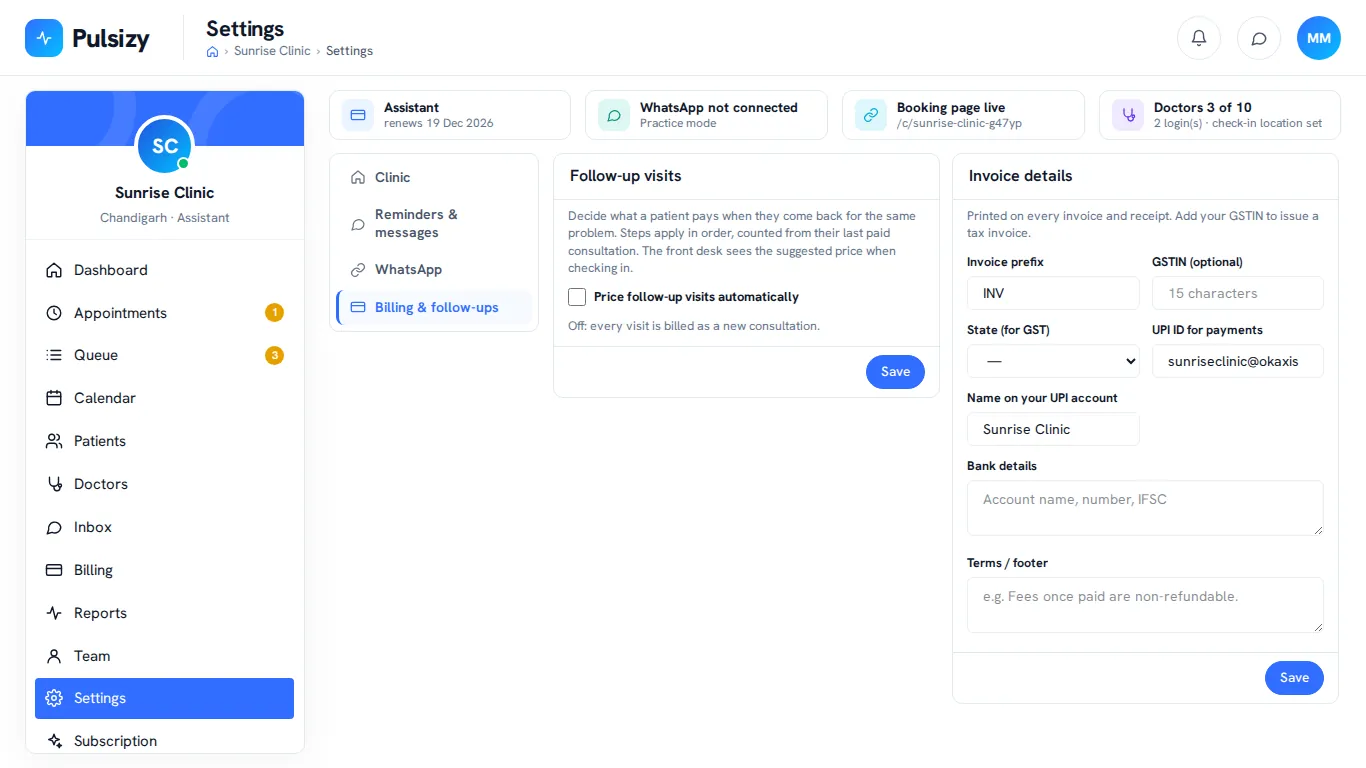
- Invoice details. Settings → Billing & follow-ups → Invoice details: invoice prefix, GSTIN (optional), your UPI ID and the name on that UPI account (needed for UPI payments).
- Reminders and daily report. Settings → Reminders & messages: tick when patients are reminded and when you get your daily summary. More
- Add your team. Team → add receptionists, and a login for each doctor who should see their own list. More
- Bring your patients (optional). Patients → Import to upload an Excel or CSV list. More
- Turn on WhatsApp (WhatsApp plans). Settings → WhatsApp. Pulsizy connects you to its WhatsApp number and gives you a clinic link and code. More
- Test it end to end. From a phone that is not yours, message the clinic link, say
hi
, then book a visit. Watch it appear under Appointments and Inbox.
The Get started card on the Dashboard keeps count of these steps and ticks them off for you.
3Create your account and log in
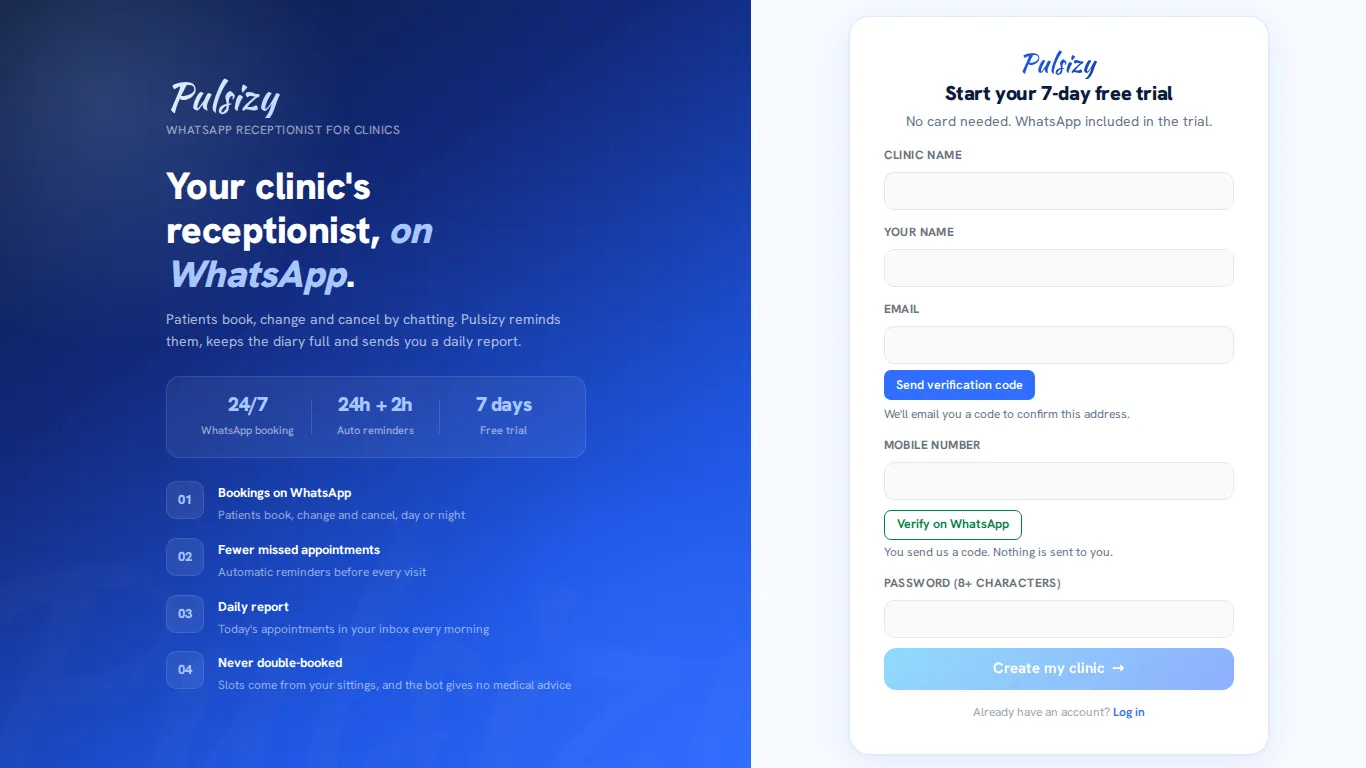
Start the free trial
- Open pulsizy.com and press Start 7-day free trial. No card is needed.
- Enter the clinic name, your name, email, mobile number and a password (at least 8 characters).
- Press Send verification code. A 6-digit code is emailed to you; type it in. This proves the email is yours.
- If you see a Verify on WhatsApp button, press it to confirm your mobile number by sending a short code from your phone.
- Press Create my clinic. You land on the Dashboard, and a welcome email arrives with a one-click sign-in link.
Log in, log out, forgot password
- Log in with the email and password you registered with. Tick Keep me logged in on your own device.
- Forgot password? Use the link on the login page; a reset link is emailed to you. If you never get it, check the spam folder and that you typed the same email you signed up with.
- Log out from the account menu (your initials, top right) or the bottom of the left menu.
- Emails are case-insensitive: Clinic@Mail.com and clinic@mail.com are the same login.
Use it like an app
Pulsizy works in any browser and can be installed on a phone or computer. Open the account menu and press Install app (it appears when your browser allows it). On iPhone use Share → Add to Home Screen. The installed app opens full-screen like any other app.
4Roles: who can see and do what
Every login has one role at the clinic. The owner sets roles under Team.
| Area | Owner | Receptionist | Doctor |
|---|---|---|---|
| Dashboard, Appointments, Calendar | All | All | Own patients only |
| Queue | All lanes, walk-ins, new screen link | All lanes, walk-ins | Own lane only, no walk-ins |
| Patients | All, import, export, erase | All, import, export, erase | Own patients (“My Patients”), cannot erase |
| Doctors | Add, edit, remove, leave | Add, edit, remove, leave | Own timings, availability switch, own signature |
| Inbox (WhatsApp chats) | Yes | Yes | No |
| Billing (patient invoices, payments) | Yes | Yes | No |
| Prescriptions | Yes | Yes | Own patients |
| Reports, Team, Settings, Subscription | Yes | No | No |
What a doctor sees
A doctor login opens a simpler workspace: today's list, their own appointments and patients, the calendar, their queue lane and their timings. At the top of the left panel they have an availability switch (I am available now / Not taking bookings, which pauses bookings for them) and a Check in / Check out button for attendance.
Working at more than one clinic
One login can belong to several clinics (a visiting doctor, for example). A clinic switcher then appears in the top bar. The owner of each clinic adds the person under Team using the same email; the person keeps one password.
5Finding your way around
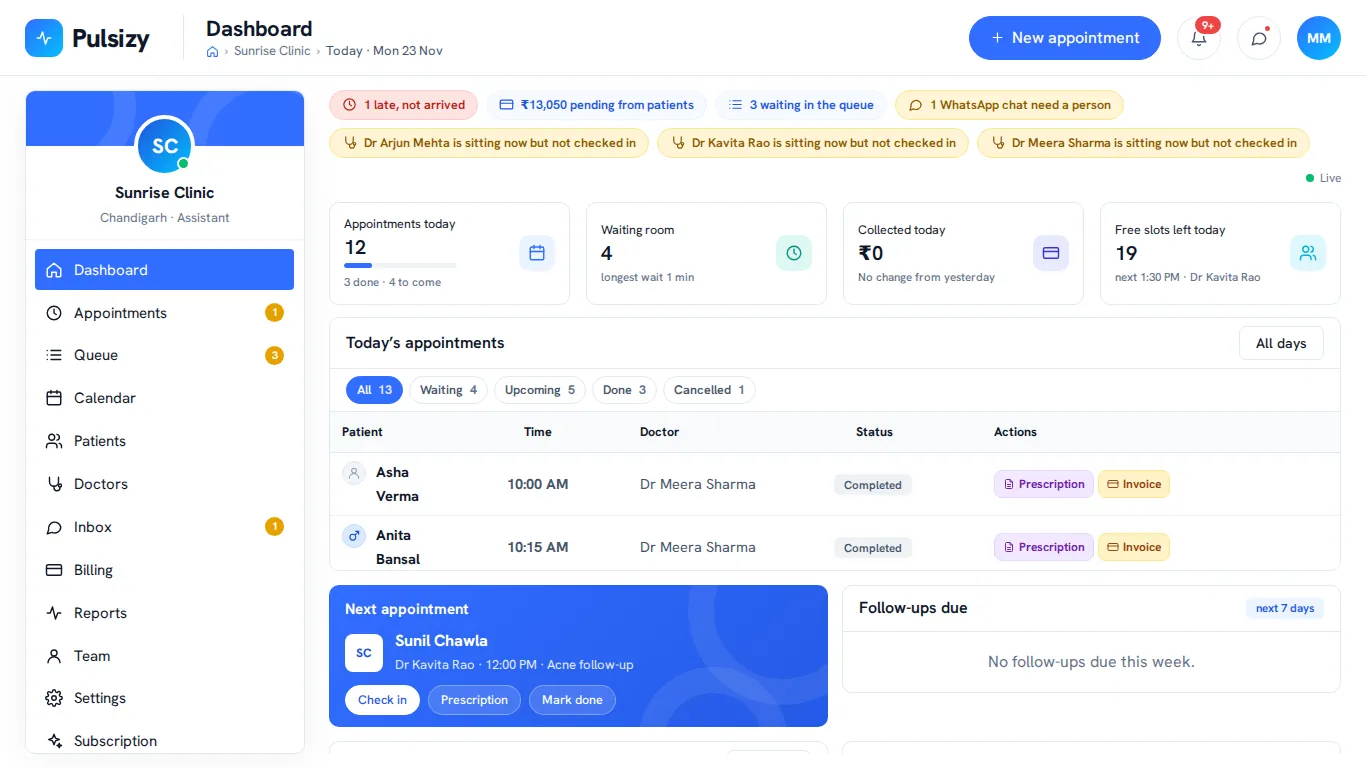
On a computer
- Left menu lists every screen. Small numbers show things waiting: unread chats, patients in the queue, UPI payments to confirm.
- Top bar shows the page title and a main button (usually New appointment). The bell shows alerts, the speech bubble opens the Inbox, and your initials open the account menu (Install app, Log out and, for owners, Reports, Team, Settings, Subscription).
- The page itself never scrolls sideways. Long lists scroll inside their own box.
On a phone
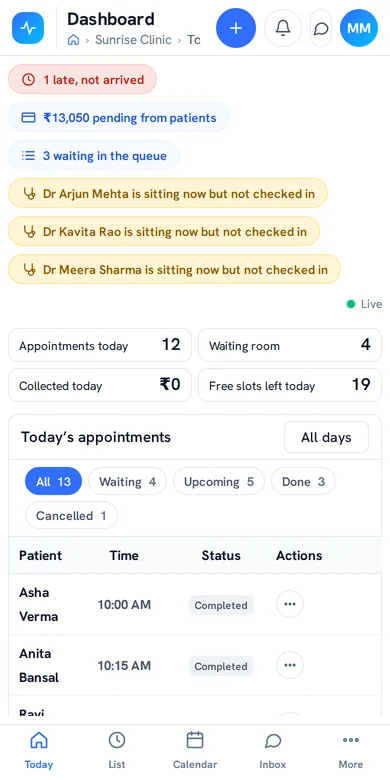
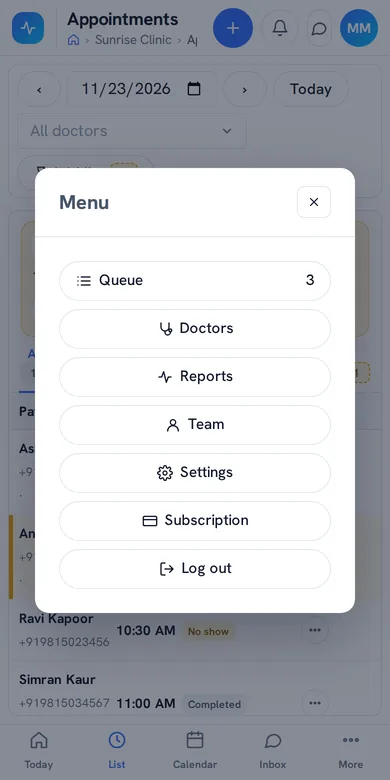
The bottom bar has the four things used most (Today, List, Calendar, Inbox). Everything else is under More. The round + button books an appointment.
6Dashboard (Today)
The first screen after login. It answers what needs me right now?
- Attention chips along the top: patients late and not arrived, payments patients say they made, people waiting in the queue, WhatsApp chats that need a person, and doctors who are sitting now but have not checked in. Tap one to go there.
- Four numbers: appointments today (with a progress bar of done vs. to come), waiting room (with the longest wait), collected today, and free slots left today (with the next free one).
- Today's appointments with filters (All, Waiting, Upcoming, Done, Cancelled) and quick actions on each row such as Check in, Prescription and Invoice.
- Next appointment card with one-tap Check in, Prescription and Mark done.
- Follow-ups due (next 7 days), Doctors today with their check-in times, the Get started checklist and, on WhatsApp plans, the WhatsApp messages used this month against your plan.
The page refreshes itself (look for the green Live dot), so you can leave it open at the desk.
7Appointments
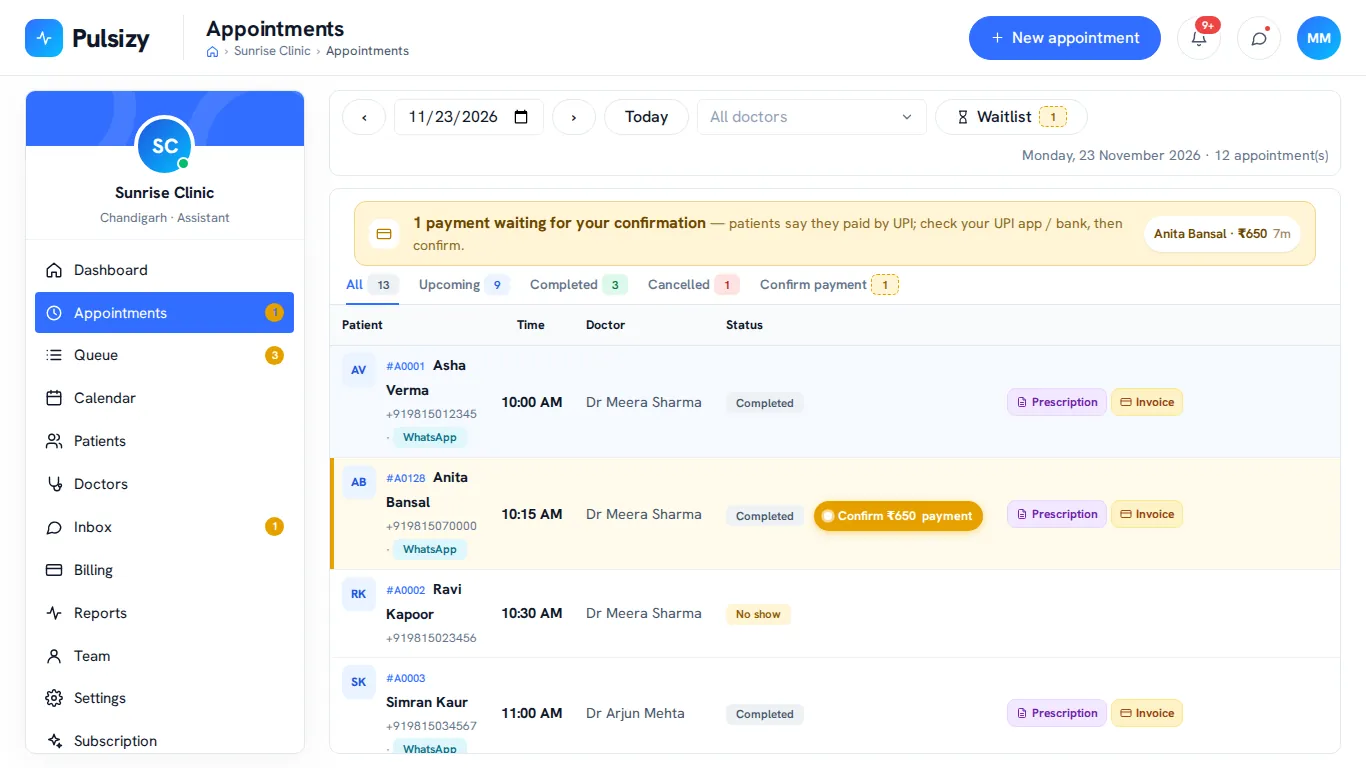
Reading the list
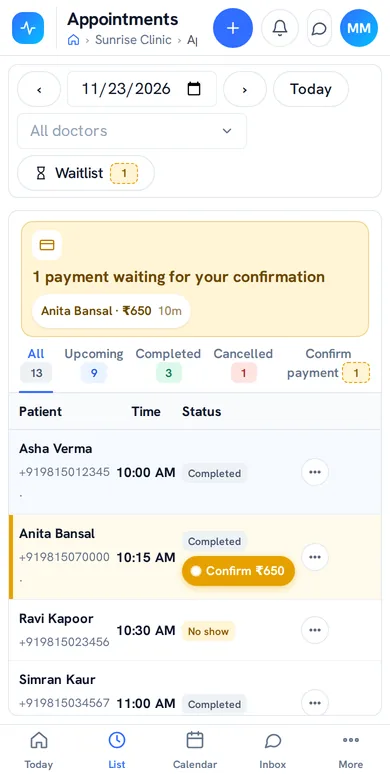
Use the arrows or the date box to change the day, and the doctor box to look at one doctor. Each row shows the patient (with their ID, mobile and a WhatsApp tag if they booked there), time, doctor, reason and status. The amber Confirm payment banner and tab appear when patients say they paid by UPI (see UPI payments).
Statuses
| Status | Meaning |
|---|---|
| Booked | The time is reserved. |
| Confirmed | The patient replied to a reminder (or the desk confirmed). |
| Tentative / Awaiting confirmation | A time held for the patient that they still have to confirm: a follow-up from a prescription, a visit you moved, or a waitlist offer. If they do not answer it is released (see follow-ups). |
| Arrived / Checked in | The patient is at the clinic and in the waiting room. Shows on WhatsApp and the distance from your desk when they checked in themselves. |
| Completed | The visit is done. |
| Cancelled | Cancelled by the patient or the desk. The time becomes free again (and may be offered to the waitlist). |
| No-show | The patient did not come. Counted in Reports; no review request is sent. |
Book an appointment
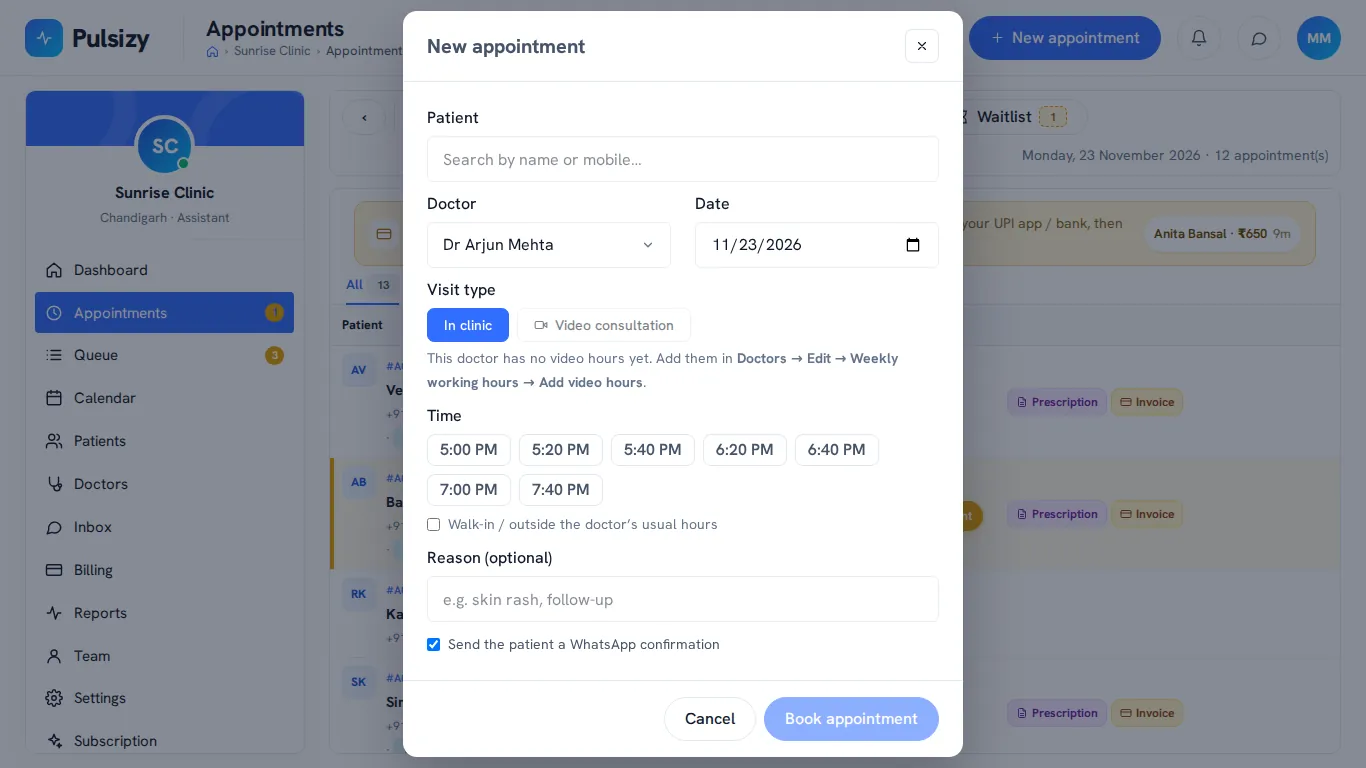
- Press New appointment (top right, or the round + on a phone).
- Search the patient by name or mobile. If they are new, choose New patient and type their name and mobile.
- Pick the doctor and date. Free times appear straight away, worked out from the doctor's hours, leave, other bookings and your booking rules.
- For a video visit choose Video consultation (the doctor needs video hours; see Doctors).
- Tap a time. Add a reason if you like. Leave Send the patient a WhatsApp confirmation ticked to tell them.
- Press Book appointment.
Change, cancel, mark
- Reschedule / move: use the row's menu (⋯) or drag the visit on the Calendar. When you move a visit, the new time is held as Awaiting confirmation and the patient is told on WhatsApp:
moved from X to Y, reply 1 to confirm
. - Cancel frees the time. No-show records that the patient did not come.
- Done completes the visit. Prescription and Invoice buttons on a row open those forms for that visit.
8Check-in and collecting payment
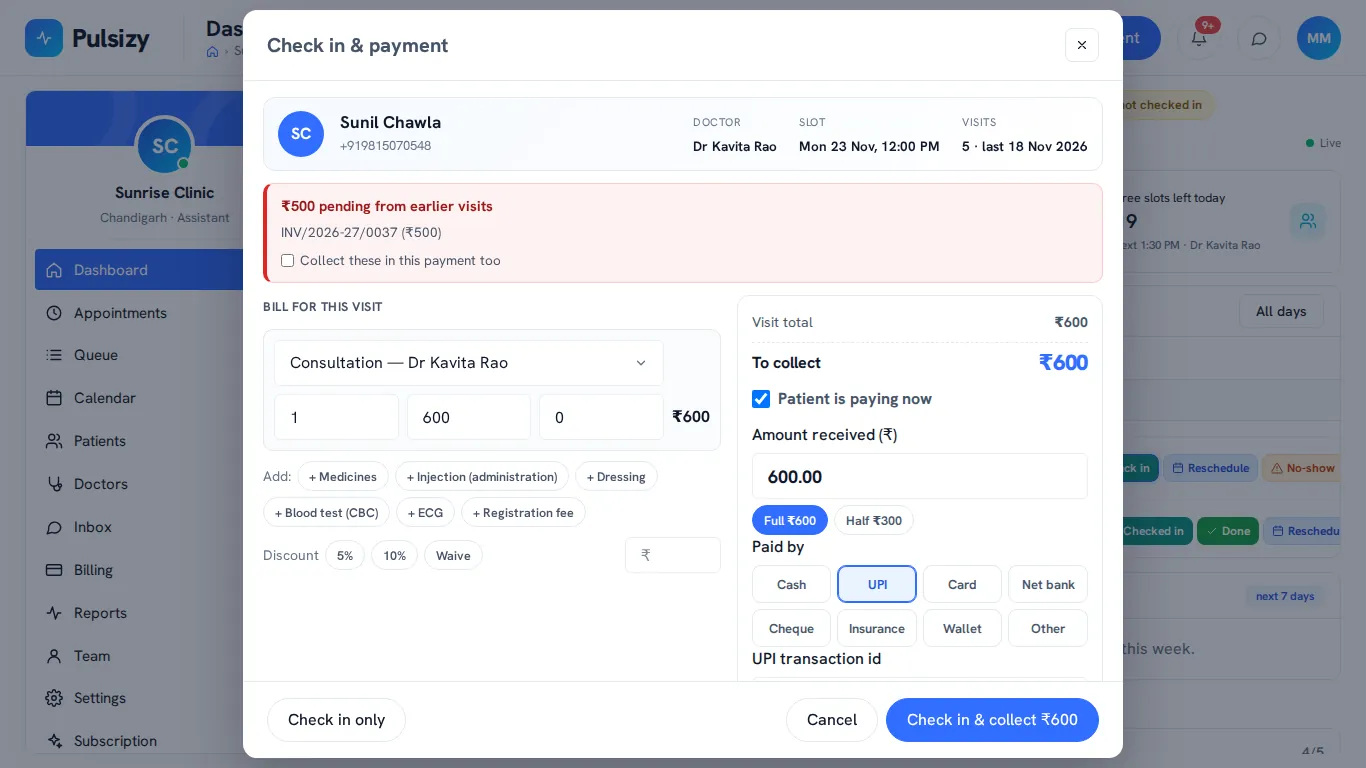
Check-in marks that the patient is in the building and puts them in the waiting queue. There are two ways:
1. The patient checks in on WhatsApp
When they arrive they message here
(or tap Check in on their reminder). The assistant asks them to share their current location (the 📎 icon → Location → Send your current location). If they are within the allowed distance of your desk, they are checked in and get a token number. They can do this up to 2 hours before their time.
The allowed distance is set in Settings → Clinic → Check-in location (30–50 metres works best; phone GPS is rarely exact indoors). If they are not accepted, the assistant tells them why (location too inaccurate, forwarded location, or too far) and the desk can always check them in by hand.
2. The desk checks them in
- Press Check in on the patient's row (Dashboard, Appointments or Calendar). The dialog opens.
- The top shows the patient, doctor, slot and number of visits. A red box warns of earlier unpaid bills; tick Collect these in this payment too to include them.
- The Bill for this visit starts with the doctor's consultation fee. If you set follow-up pricing it suggests the follow-up price automatically. Add services with the quick buttons (+ Medicines, + Injection, + ECG …) or change the rate. Apply a discount with the 5%, 10% or Waive buttons.
- If the patient is paying now, leave Patient is paying now ticked, enter the amount (Full or Half buttons help), choose Paid by (Cash, UPI, Card, Net bank, Cheque, Insurance, Wallet, Other) and add the UPI transaction ID if it was UPI. The dialog shows your UPI ID and QR so the patient can pay while you wait.
- Press Check in & collect. Or Check in only to bill later.
Either way, the patient now has a queue token and shows as Arrived.
9Queue and waiting-room screen
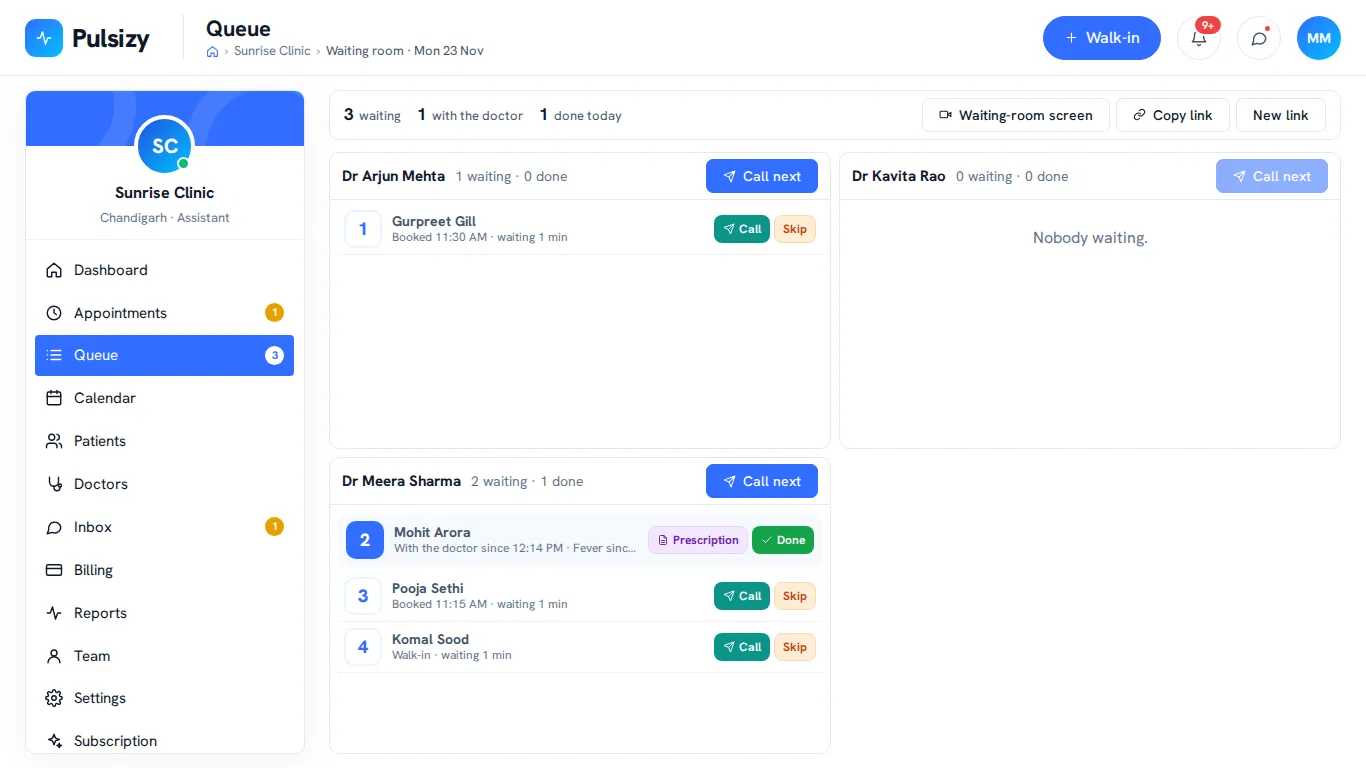
A token number is created for every check-in and for every walk-in, so the doctor always knows who is next. The Queue shows one lane per doctor.
- Call next calls the first waiting patient of that doctor. Call calls a specific person.
- Skip puts someone who stepped out Back in line (they keep their number but go to the end).
- Done finishes the visit and marks the appointment completed. A Prescription button sits next to the patient currently with the doctor.
- Walk-in (top right, not for doctors): choose the patient (or a new one) and the doctor, add a reason. If they already have a booking with that doctor today, they are checked in for it, so no second visit is created. Tick Send the token number on WhatsApp to message them their number and, later,
it is your turn
.
The waiting-room screen
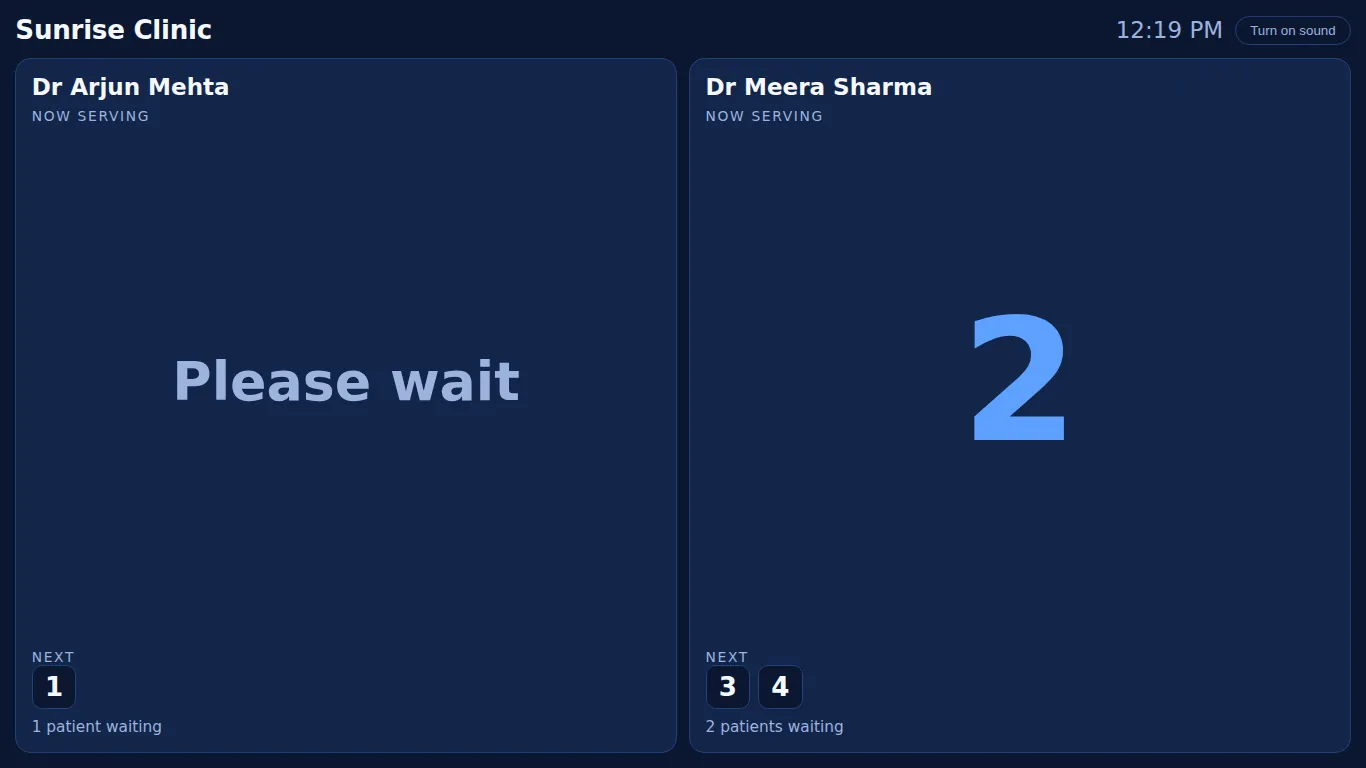
Press Waiting-room screen to open the display, or Copy link and open it on a TV or tablet in your waiting area. It needs no login, updates every few seconds and shows only token numbers (never patient names). Turn on its sound to hear Token 7, Dr Sharma
. If the link ever gets shared by mistake, press New link; the old one stops working.
10Calendar
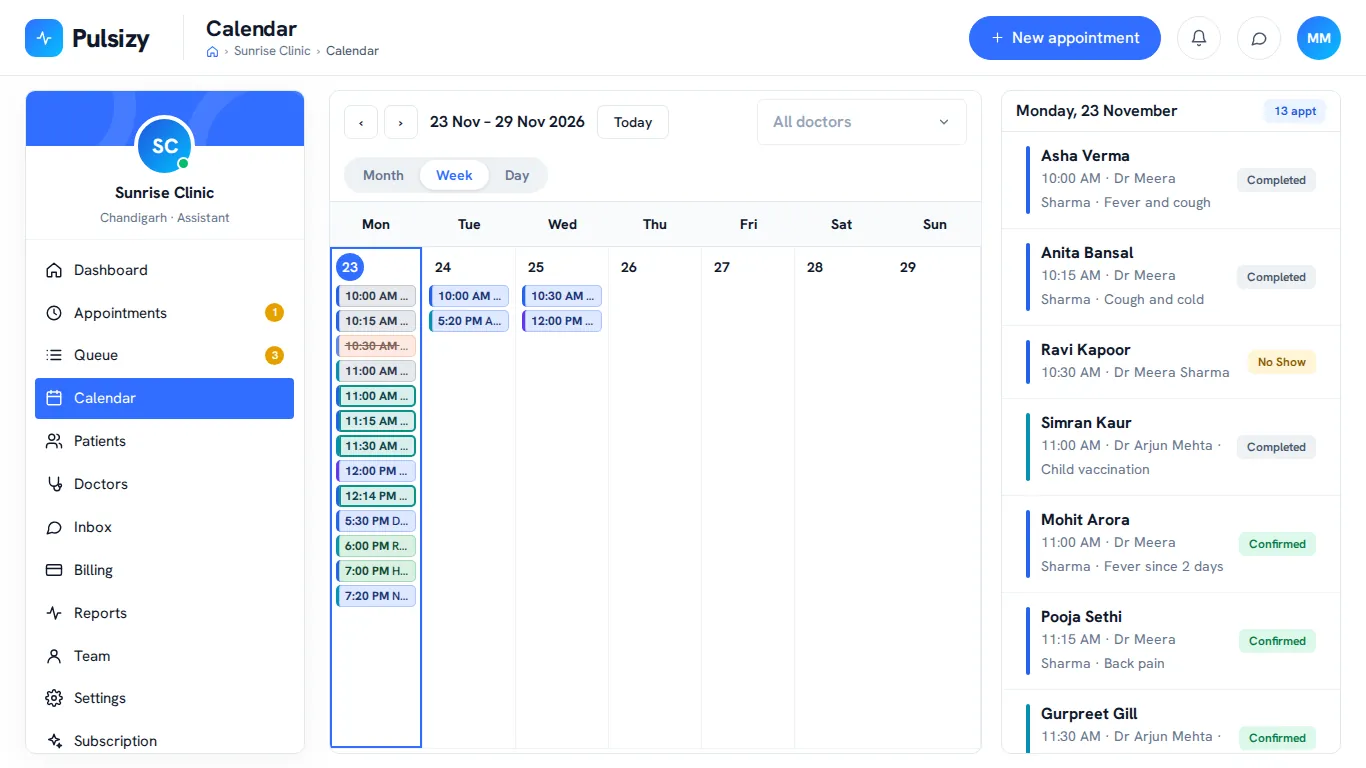
- Switch between Month, Week and Day, and filter by doctor. The right-hand panel lists the selected day.
- Colours show status (booked, confirmed, awaiting confirmation, arrived, completed, cancelled, no-show); the stripe on the left shows the doctor, and the shaded background shows working hours.
- Drag a visit to another time or day to move it (the patient is notified as described under Appointments). Use Set time to change when a visit ends.
- Click a visit to open the patient, check them in or mark it done.
11Waitlist
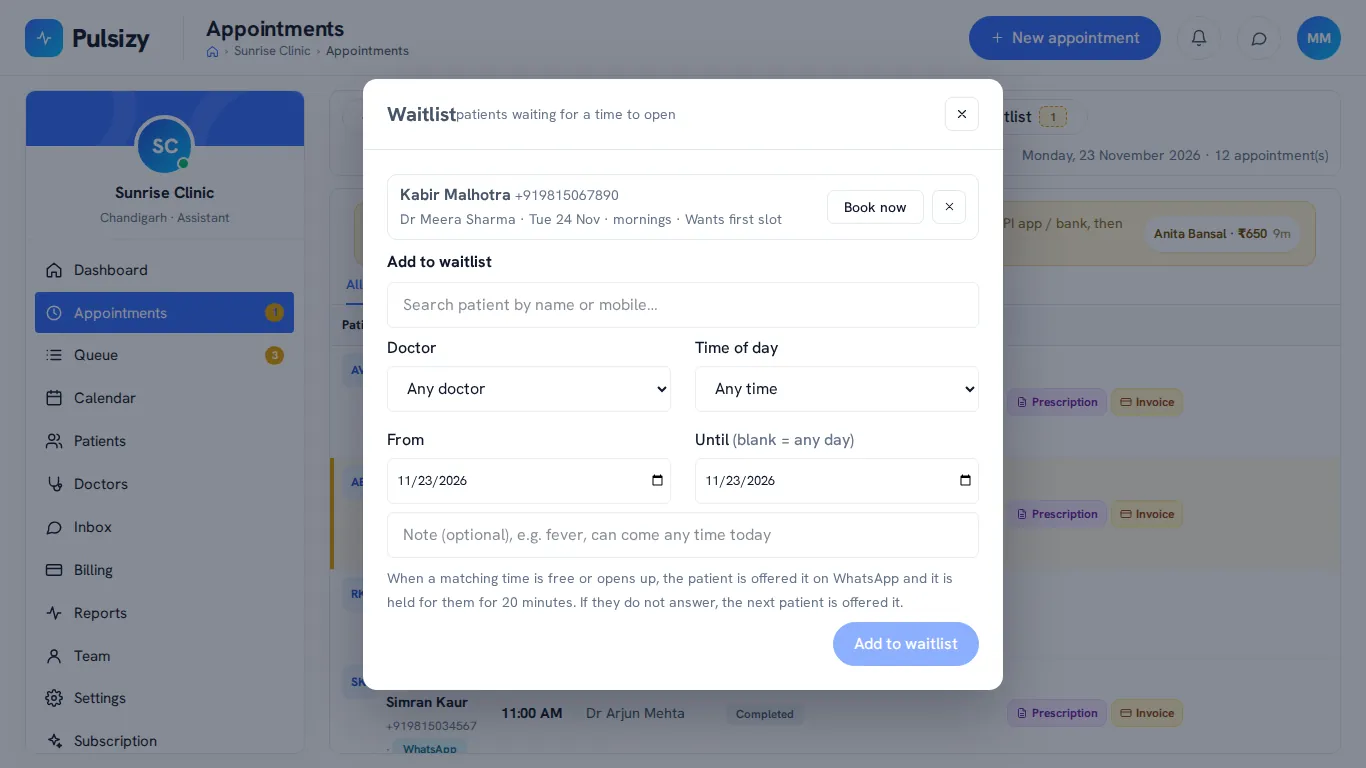
When a day is full, put the patient on the waitlist instead of telling them to call back. Press Waitlist on the Appointments page and add the patient, doctor (or Any doctor), time of day, and the dates. Patients can also say waitlist
to the WhatsApp assistant when a day is full.
When a matching time opens up (someone cancels, or a time is found), the first waiting patient is offered it on WhatsApp and it is held for 20 minutes. If they reply Confirm it is booked; if they decline or do not answer, the hold is released and the next patient is offered. After three refusals the entry is closed. Offers are made only between 08:00 and 21:00 and at least 45 minutes before the slot. You can also press Book now on an entry yourself. Switch off in Settings if you prefer manual control.
12Patients
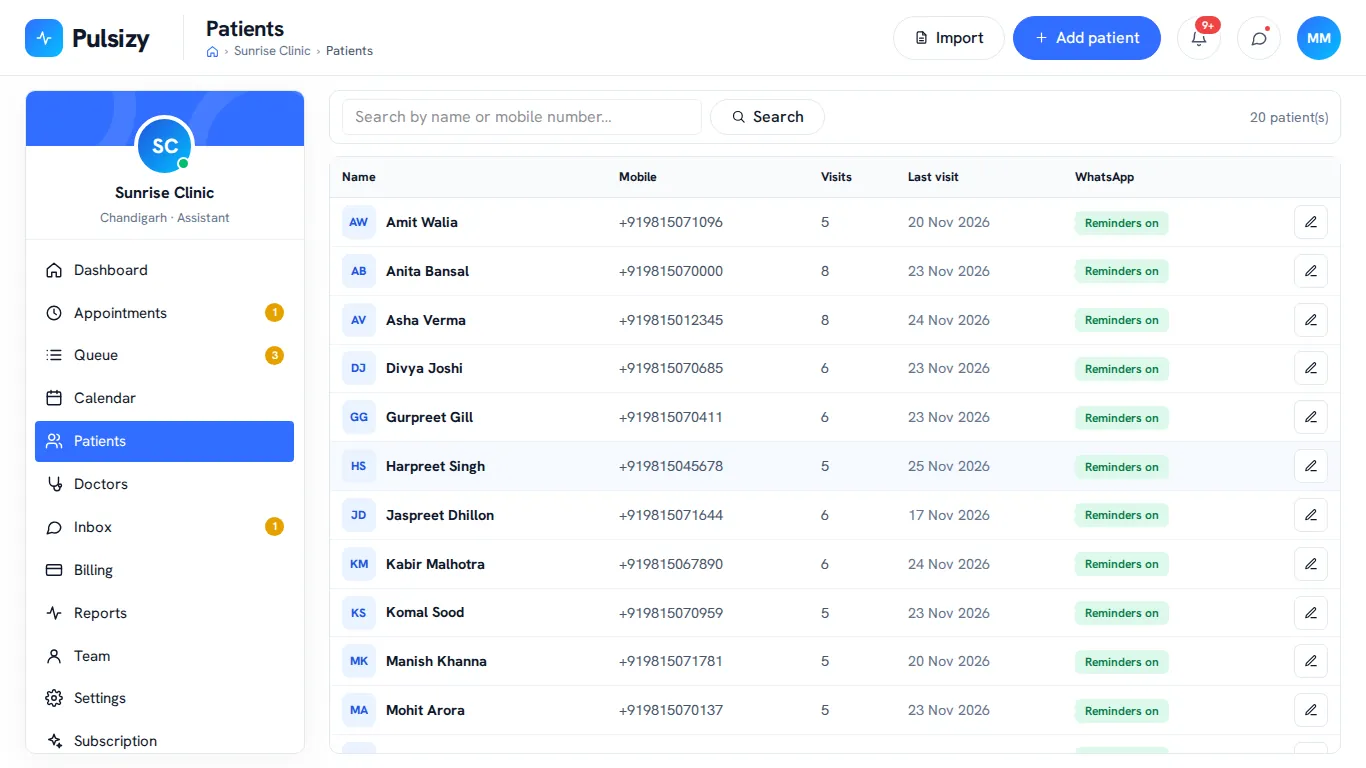
- Find a patient by name or mobile in the search box. The list shows visits, last visit and whether WhatsApp reminders are on.
- Add patient: name and mobile are enough. Gender, date of birth, notes and How did you hear about us (used in Reports) are optional.
- A patient who sends
STOP
on WhatsApp is switched to Reminders off and receives no more automatic messages. Your staff can still contact them.
The patient record
Shows details, consent (when and how they agreed to be messaged), visit history, invoices and prescriptions, with buttons to book, bill, write a prescription or edit. Two owner/desk-only tools sit here:
- Export downloads everything held about the patient (their right to access).
- Delete (asks you to confirm) erases the patient permanently, with their appointments, vitals, reports and any payment screenshots. It cannot be undone and is written to an audit log. Doctors cannot do this.
Allergies, conditions, blood group, vitals and uploaded reports live on the same page: see Patient health record.
Import a spreadsheet
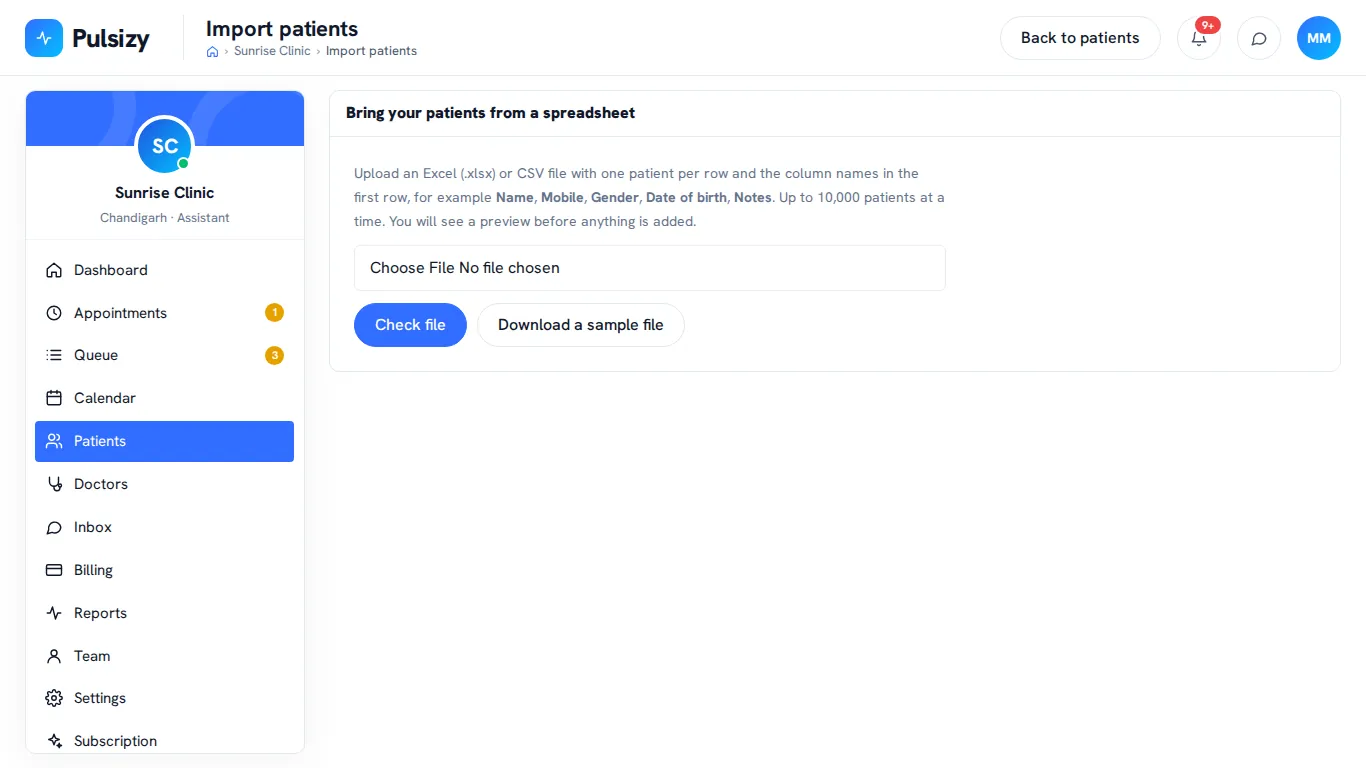
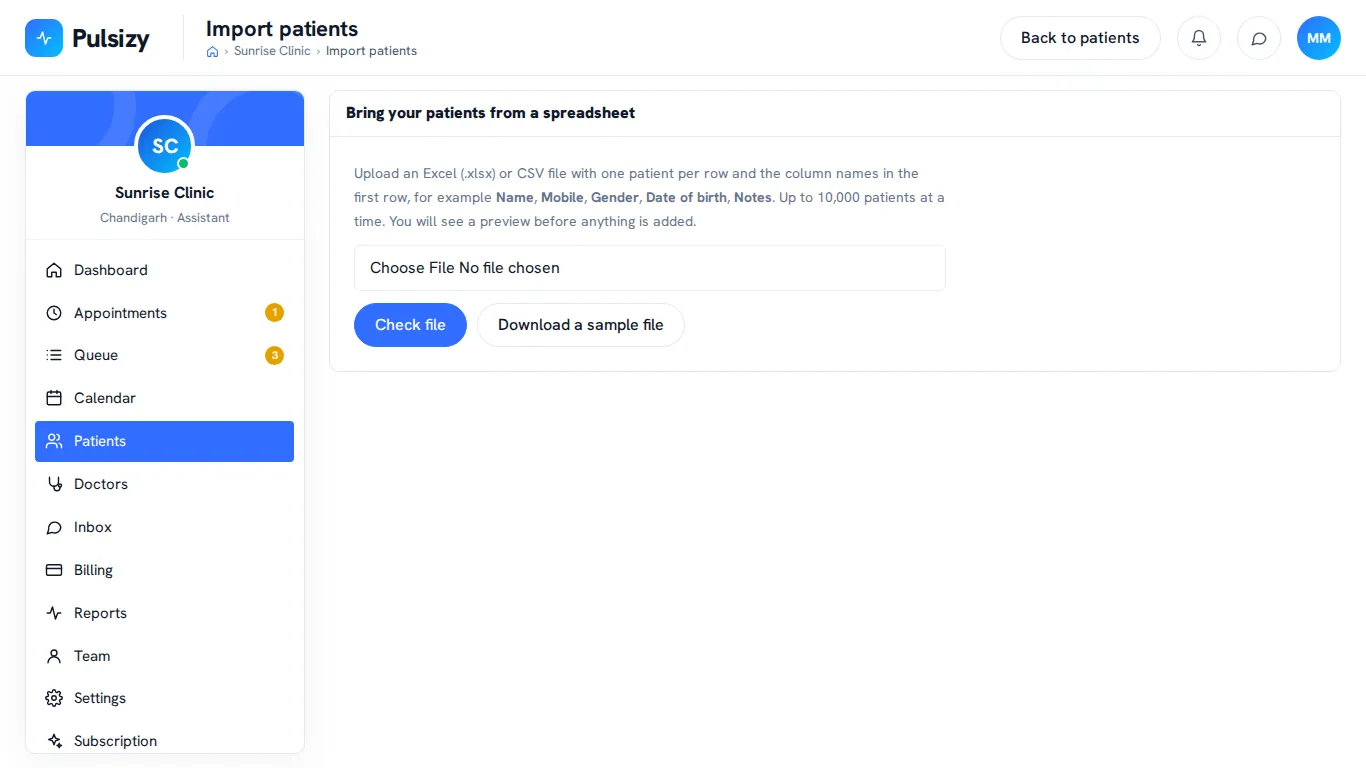
- Patients → Import (not available to doctors). Press Download a sample file if you need a template.
- Choose your .xlsx or .csv file (up to 10,000 patients) and press Check file.
- Pulsizy guesses which column is which. Correct any wrong guess in Which column is which?. Use either Full name or First name + Last name.
- Read the preview and the list of rows that will be skipped (blank names, bad mobiles, duplicates).
- Tick These are my clinic's own patients, and Pulsizy may message them about their appointments, then run the import. Your tick is saved as their consent record.
13Patient health record
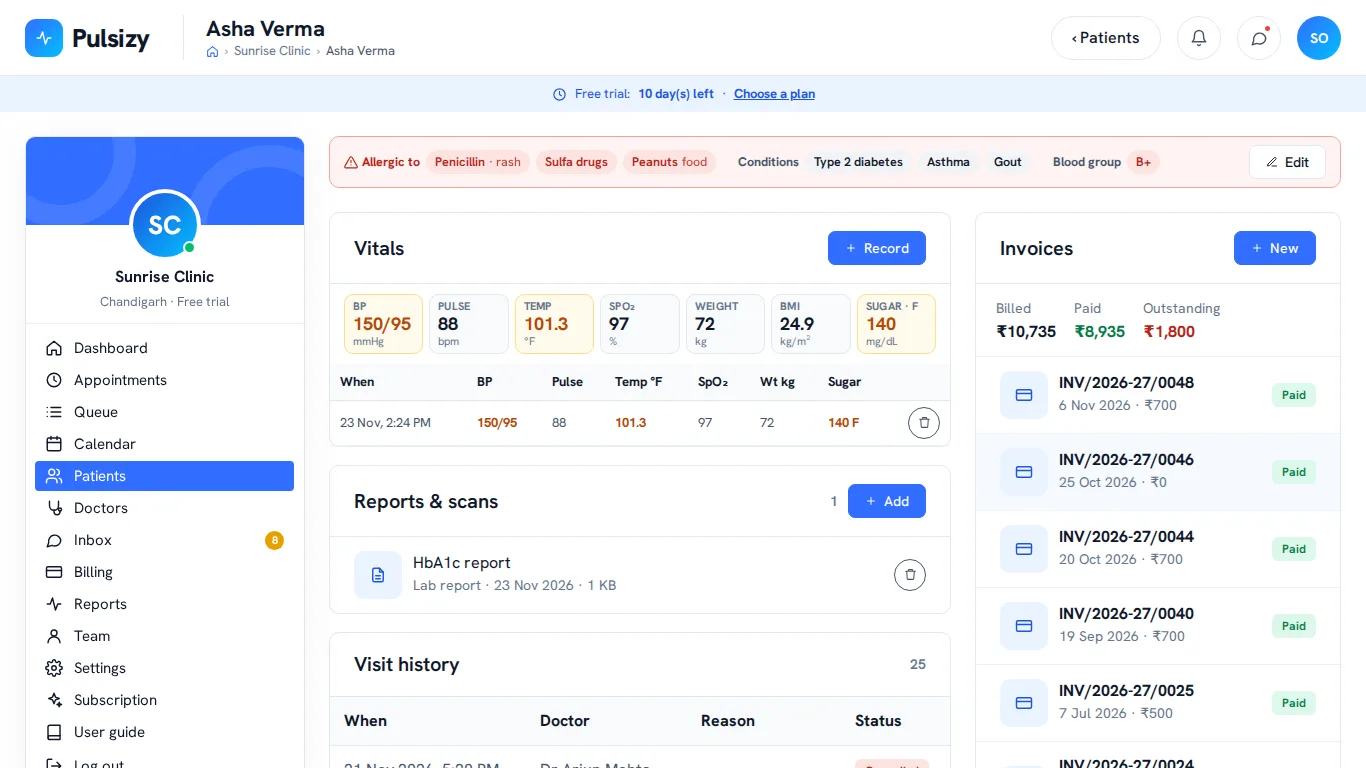
Open a patient and the top of the page carries what a doctor needs at a glance. Owners, receptionists and doctors can all fill it in (a doctor reaches only their own patients).
Allergies, conditions and blood group
- Press Edit on the strip at the top. Add each drug allergy (for example Penicillin) with an optional reaction (rash), plus other allergies (food, dust), chronic conditions (Type 2 diabetes, Asthma) and blood group.
- Pulsizy tells apart “never asked” from “no known allergies”. A patient who has not been asked shows an amber Allergies not recorded · Ask the patient before prescribing banner. Once you have asked, add the allergies or tick Patient says: no known allergies, and the banner changes to a green No known allergies, so the next doctor knows it was checked.
- A patient with allergies shows a red banner here, and the same allergies appear at the top of the prescription screen, so they are seen before anything is prescribed.
Vitals
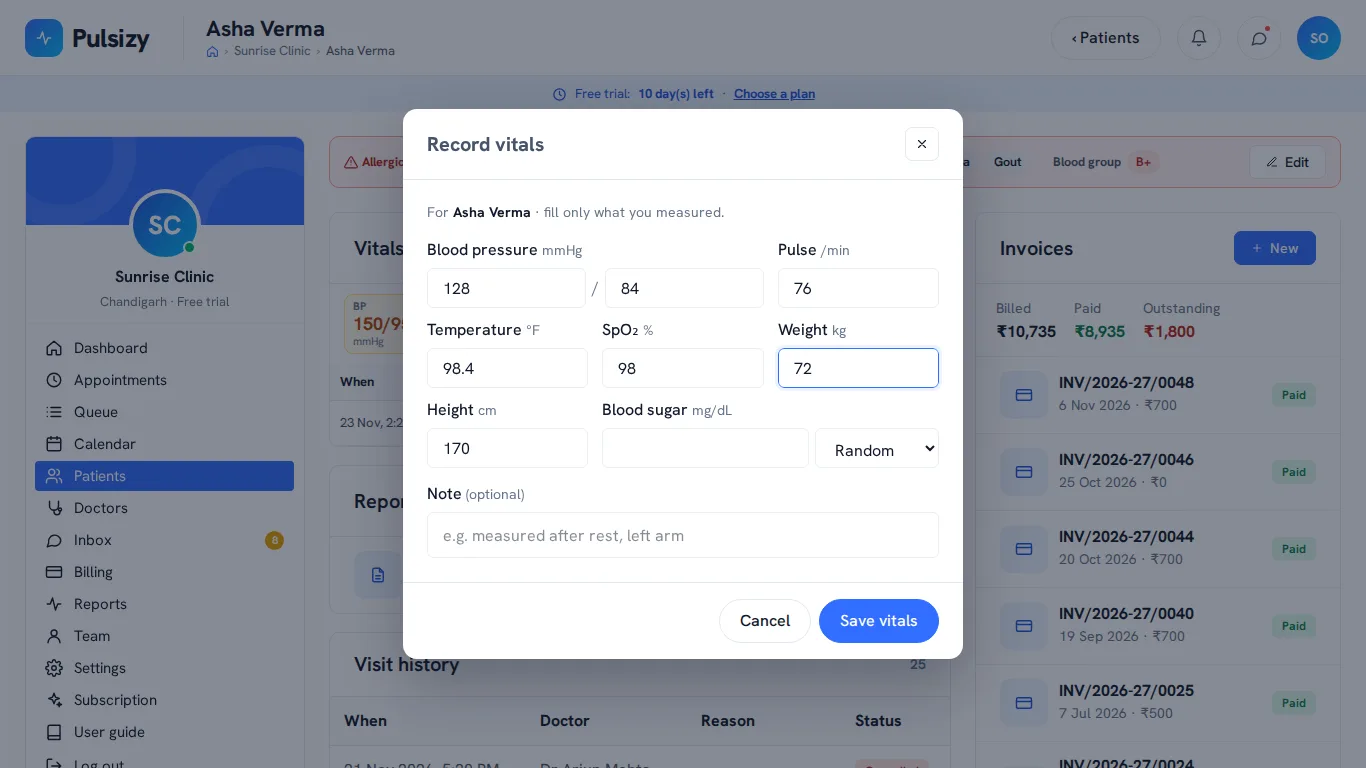
- On the patient's page press Record in the Vitals card.
- Fill in only what you measured: blood pressure (upper and lower together), pulse, temperature, SpO₂, weight, height, blood sugar (with Fasting / Random / After meal) and an optional note. BMI is worked out for you.
- Press Save vitals. The newest reading is shown in tiles (readings outside the normal range are tinted amber or red) and older ones in the history table.
The prescription screen shows the latest vitals, and the printed prescription carries them with the allergies and blood group. A wrong reading can be removed by the owner or by whoever recorded it.
Reports and scans
In the Reports & scans card press Add, give the report a name (for example HbA1c), choose Lab report, Scan / X-ray or Other, set its date and attach a PDF, JPG, PNG or WebP up to 8 MB. Every file is scanned for viruses, checked to be what it says it is, stored privately (never on a public link) and every view is written to the audit log. A patient can hold up to 100 files. Only the owner or the person who uploaded a file can remove it.
Drug-allergy warning when prescribing
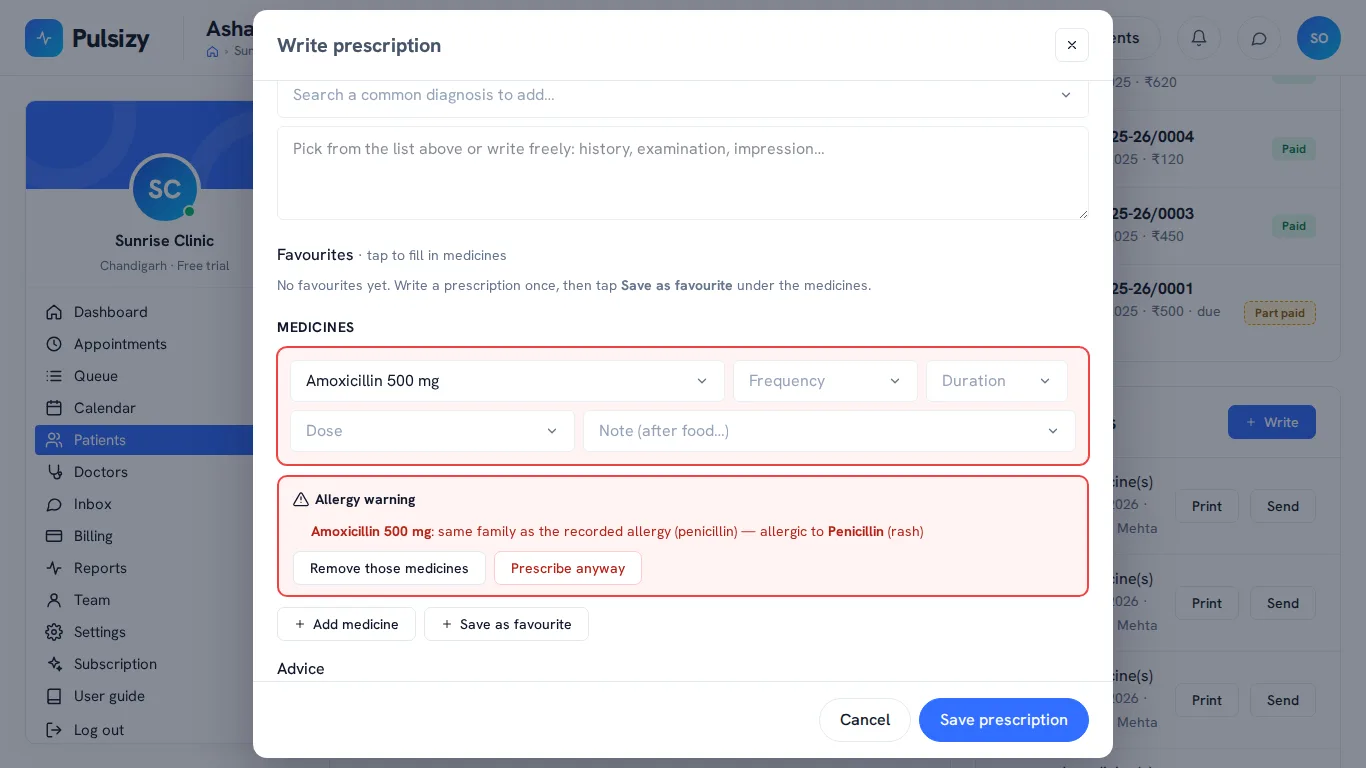
While a doctor adds medicines, Pulsizy compares each one with the patient's recorded allergies, including medicines of the same family (for example amoxicillin for a penicillin allergy). A match marks the row red and shows an Allergy warning with two choices: Remove those medicines or Prescribe anyway. If the doctor chooses to prescribe anyway, that override is saved with the prescription and noted on the printout for staff. The check is a safety net, not a substitute for the doctor's judgement: it only knows what has been recorded.
14Doctors and their timings
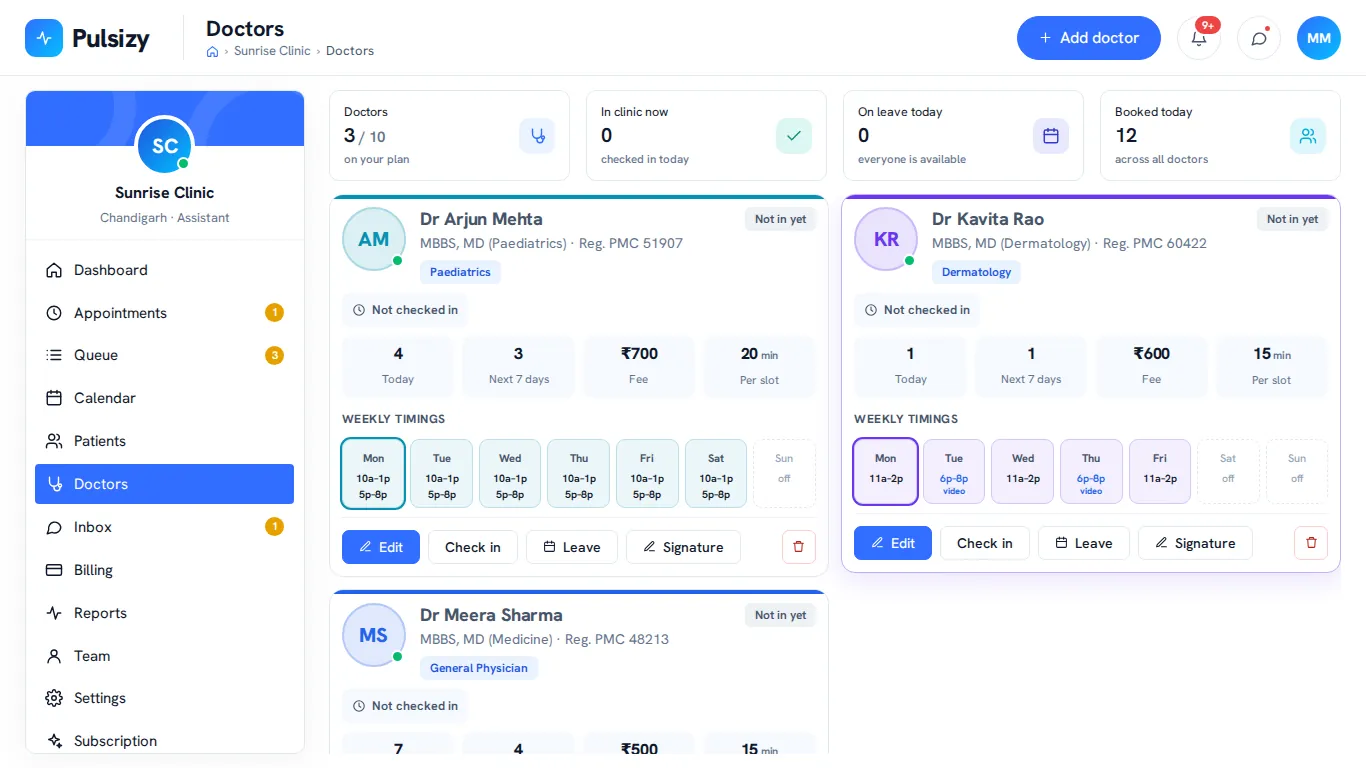
The top strip shows how many doctors your plan allows, who is in the clinic now, who is on leave, and bookings today. Each card shows that doctor's numbers and a small week of timings.
Add or edit a doctor
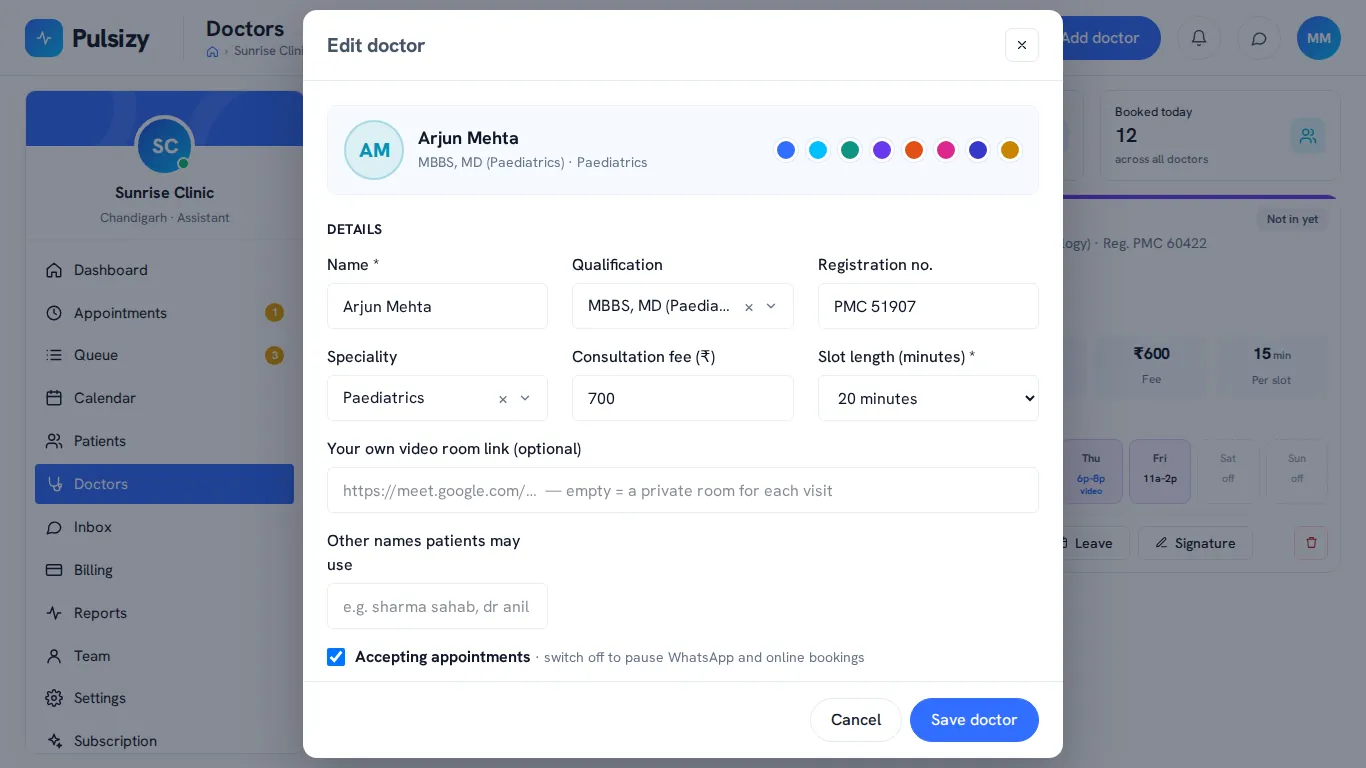
- Details: name, qualification, registration number, speciality (pick from the list or type your own), consultation fee, and slot length (minutes per visit; this decides how many free times the doctor has).
- Other names patients may use: nicknames such as
sharma sahab
, so the assistant recognises them in chat. - Accepting appointments: untick to pause WhatsApp and online bookings for this doctor without losing their timetable.
- Weekly working hours: add one or more time ranges per day, for example 10:00–13:00 and 17:00–20:00. Quick buttons copy a pattern across days (Copy Mon → Tue–Sat).
- Colour picks the doctor's colour on the calendar.
Video consultations
Each row of working hours is either In clinic or Video (one or the other at a time). Use Add video hours for a quick set. Patients can book a video visit only inside video hours. Each video visit gets a private link of the form pulsizy.com/v/… that opens a meeting room (a private room by default, or the doctor's own link if you paste one in Your own video room link). The link opens 15 minutes before the visit. It is sent in the confirmation and reminder messages, and again just before the visit. A video visit costs the same consultation fee.
Leave
Leave on a doctor's card blocks bookings between two dates. Existing appointments in that period are not cancelled automatically; move or cancel them yourself.
Attendance and signature
- Check in / Check out records when the doctor is at the clinic (shown on the Dashboard). A doctor does this from their own login using their phone's location, or the desk can mark it on their behalf.
- Signature uploads the doctor's signature image so it prints on prescriptions.
15Prescriptions
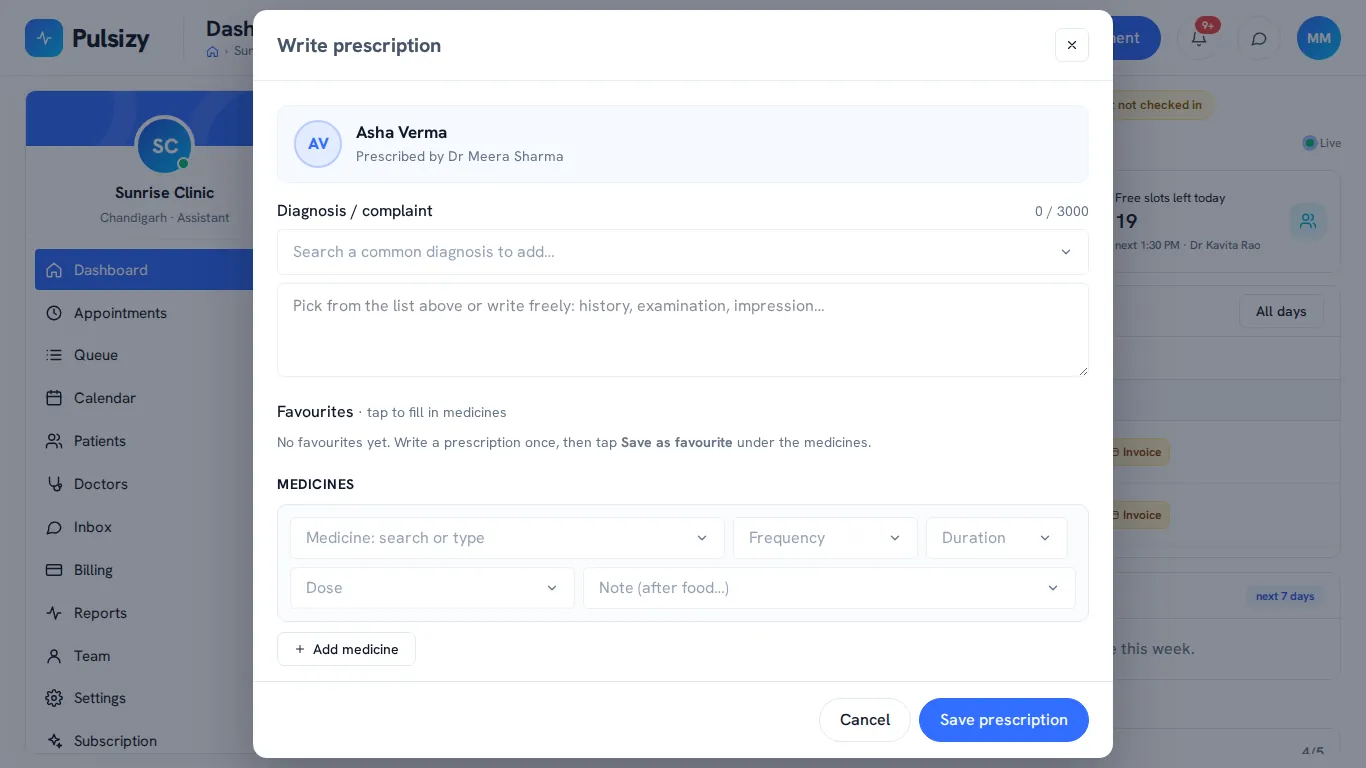
- Press Prescription on a visit (Dashboard, Appointments, Calendar or Queue) or from the patient's record.
- Diagnosis / complaint: search the list of common diagnoses or just type. Up to 3,000 characters.
- Medicines: for each, search the medicine name (or type any), then choose dose, frequency (for example 1-0-1), duration and a note (after food…). Press Add medicine for more.
- Allergy check: the patient's allergies, blood group and last vitals show at the top. A medicine that clashes with a recorded allergy turns red with a warning (see Patient health record).
- Favourites: after writing a regular prescription, press Save as favourite and name it. Next time tap that favourite chip to fill in the medicines and diagnosis in one go. A doctor sees their own favourites and the clinic-wide ones.
- Add advice, and a follow-up date (see below).
- Tick Send the PDF to the patient on WhatsApp when I save and/or Open the print view after saving. Press Save prescription.
Follow-up bookings
Choose a follow-up date and a free time, and Pulsizy books a tentative visit and tells the patient on WhatsApp straight away. They confirm, cancel or reschedule by replying. If they never answer, the unconfirmed time is released about 12 hours before, and they get a nudge before that. A reminder to book is also sent on the follow-up date when no time was chosen.
Printing and sharing
- The print view carries your logo, address, the doctor's registration number and signature, and a verification code. Press Print / Save as PDF. For pre-printed letterhead pads add
?plain=1to the print address to fade the header. - The patient gets a private link (valid 30 days) so they can open their own prescription. Scanning the verification code on the printout shows whether it is genuine.
- Prescription text is stored encrypted.
16Billing: invoices and payments
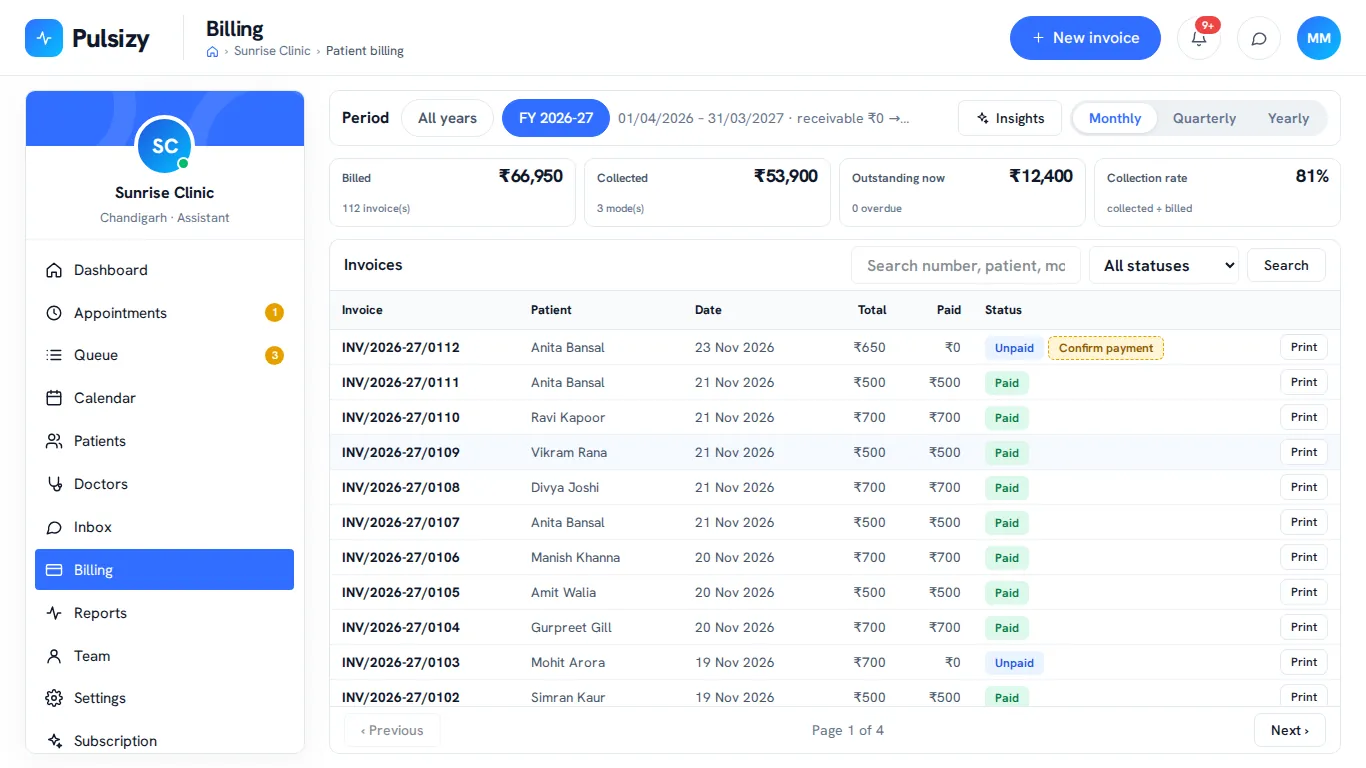
Billing (in the left menu) is for what your patients pay you. Do not confuse it with Subscription, which is what you pay Pulsizy.
The screen
- Period bar: pick one or several financial years and group by Monthly / Quarterly / Yearly. Financial years run 1 April to 31 March (FY 2026-27 is 01/04/2026 – 31/03/2027) and quarters are Apr–Jun, Jul–Sep, Oct–Dec, Jan–Mar. The exact dates are shown beside the chips.
- Numbers: billed, collected, outstanding now (with how many are overdue) and collection rate. Insights opens charts of billed vs collected, collected by payment mode, outstanding balances and recent payments.
- Invoice list: search by number or patient, filter by status (Unpaid, Part paid, Paid, Overdue, Void). 30 per page.
Create an invoice
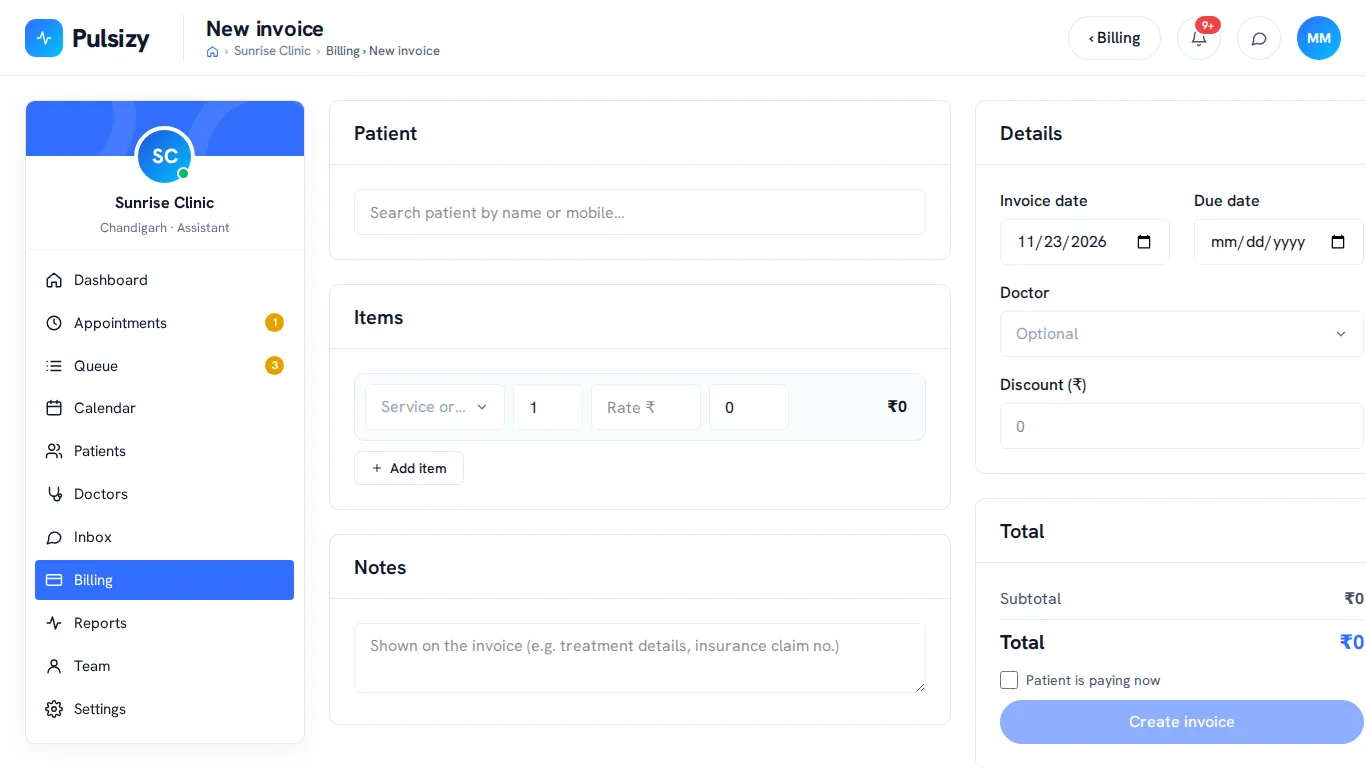
- Billing → New invoice (or the Invoice button on a visit).
- Pick the patient. Add items from your services list or type your own: quantity, rate and GST %.
- Set the dates, optional doctor and discount. Tick Patient is paying now to record a payment in the same step.
- Press Create invoice. Numbers run in order for each financial year, for example INV/2026-27/0112 (change INV in Settings).
On an invoice
- Add payment any number of times (part payments are fine): amount, mode (Cash, UPI, Card, Net banking, Cheque, Insurance, Wallet, Other), reference such as a UPI transaction ID, and date.
- Print an invoice or a receipt for each payment. With a GSTIN set in Settings it prints as a tax invoice.
- Send on WhatsApp sends the patient a link to their bill, and Send Pay now link sends the Pay now link (shown once there is a balance and your UPI ID is set).
- Void invoice cancels an invoice entered by mistake (available while nothing has been paid on it). A wrong payment is cancelled with Cancel next to it in the Payments list. Voided items stay on record, marked void, and do not count in totals.
Follow-up pricing
Many clinics charge less for a return visit for the same problem. Under Settings → Billing & follow-ups turn on Price follow-up visits automatically and add steps such as Until day 7: free (up to 2 visits), Until day 15: half price, then full price. Days are counted from the patient's last paid consultation, and you can restrict it to the same doctor. The front desk sees the suggested price at check-in and can still change it.
17UPI payments and screenshot check
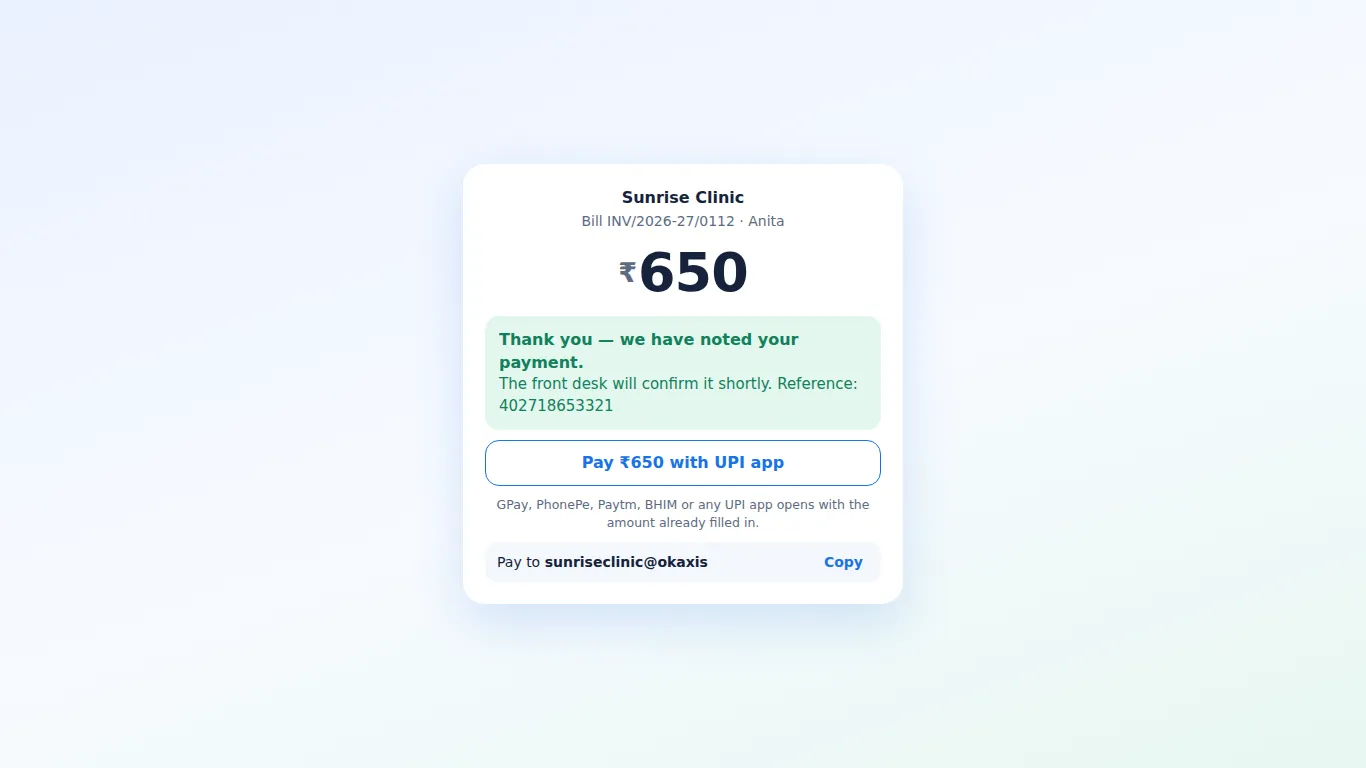
Pulsizy never touches your money: patients pay directly to your UPI ID. Pulsizy only helps them pay and helps you check.
What the patient sees
They get a link (from Send Pay now link, or from the bill link) that opens a page with their balance, a Pay ₹… with UPI app button that opens GPay, PhonePe, Paytm or any UPI app with the amount filled in, your UPI ID to copy, and a QR. After paying they press I have paid, optionally adding the transaction reference and a screenshot. This is only a claim: nothing is marked paid yet.
What the desk does
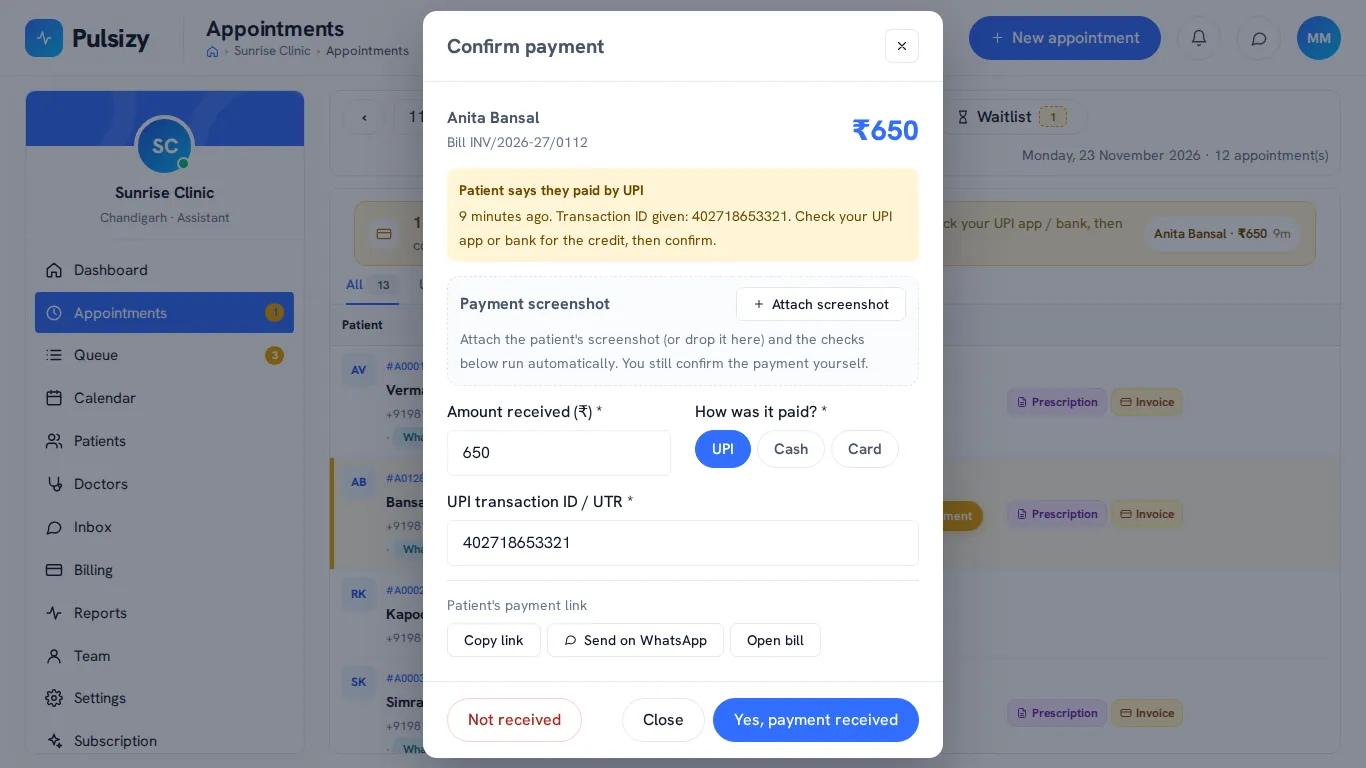
- An amber banner on Appointments, a Confirm payment tab, a count on the left menu and a bell alert tell you a patient says they paid.
- Press the pulsing Confirm ₹… chip. The dialog shows what the patient claimed and any screenshot.
- If a screenshot was attached (by the patient, or by you with Attach screenshot or drag-and-drop), Pulsizy reads it and shows a green / amber / red checklist: payment successful, amount matches the bill, paid to your UPI ID or account name, date makes sense, transaction ID not already used on another bill.
- Check your UPI app or bank. A screenshot can be faked, so green only means consistent, not received. Pulsizy never marks anything paid on its own.
- Press Yes, payment received (a red result asks Record anyway?) or Not received.
Screenshots are stored privately, visible only to your front desk, and are deleted if you erase the patient. Switch the whole feature off under Settings → Reminders & messages → Payment links (Pay now); the page then tells patients to pay at the desk. Settings → Billing → UPI ID and Name on your UPI account must be filled in first.
18Reports
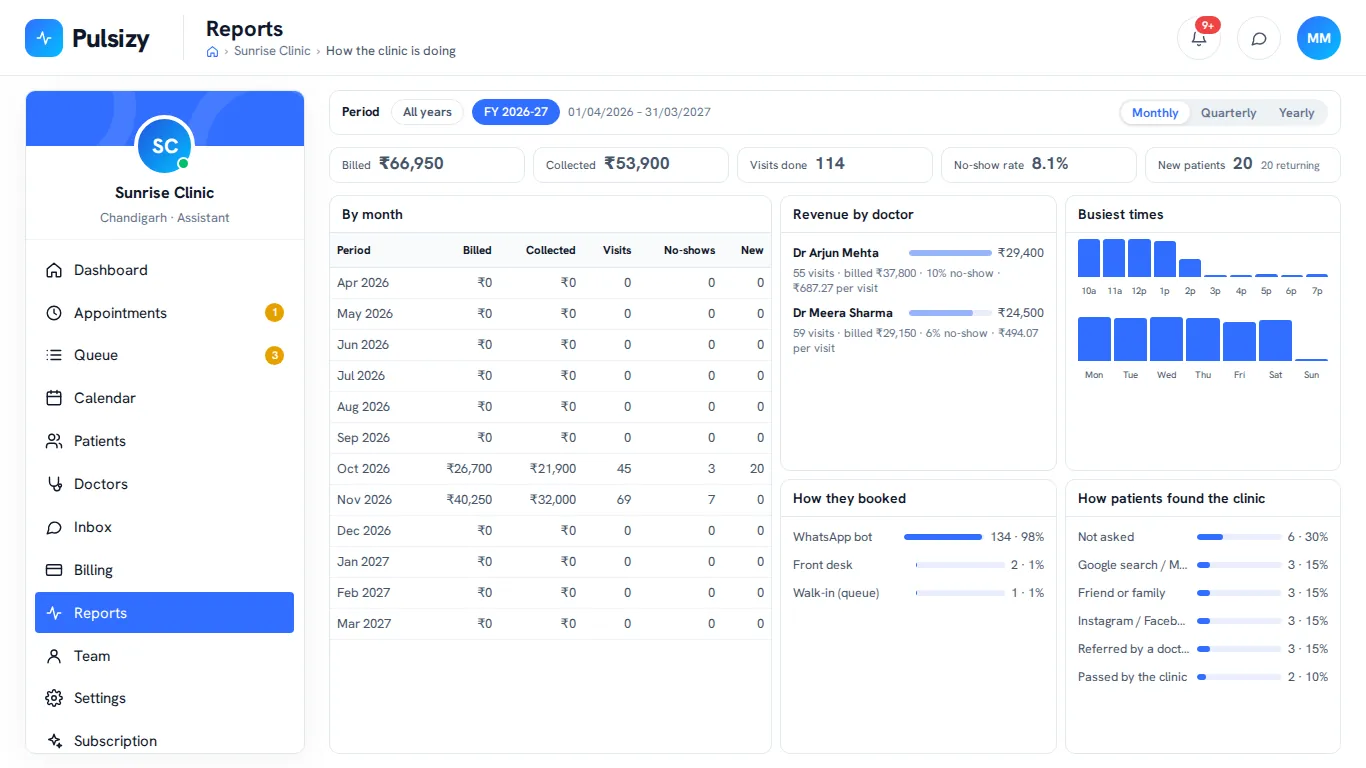
Owner only. Uses the same financial-year chips and Monthly / Quarterly / Yearly switch as Billing.
- Totals: billed, collected, visits done, no-show rate, new vs returning patients.
- By period table for each month, quarter or year.
- Revenue by doctor with visits, no-show % and average per visit.
- Busiest times by hour of day and day of week, so you can staff and schedule sensibly.
- How they booked (WhatsApp, front desk, walk-in, follow-up, waitlist…) and How patients found the clinic. The second chart fills in as you record the How did you hear about us answer on patient records.
19The WhatsApp assistant
Patients use WhatsApp the way they already do; there is nothing to install or learn. The assistant understands everyday English, Hindi and Punjabi: typed in their own script or in English letters (for example kal 6 baje
, tomorrow evening
, ਕੱਲ੍ਹ ਸ਼ਾਮ ਨੂੰ
, cancle appointment
), or spoken as a voice note. It fixes common typing mistakes and answers in the patient's own language. See Hindi, Punjabi and voice notes.
1. 5:20 PM
2. 5:40 PM
3. 6:20 PM
Reply with the number of the time you want.
📍 SCO 14, Sector 17, Chandigarh
What patients can ask for
| They say… | What happens |
|---|---|
Hi, menu | A welcome with your clinic name, a short privacy notice the first time, and tap-buttons: Book appointment, My appointments, Reschedule, Cancel, Check in, Timings, Fees, Address, Prescription, Bill. |
book, appointment with Dr X, skin doctor, child specialist | Asks for the doctor (or picks by speciality), the day, then shows free times. Then asks the patient's name and a final YES/NO. If the exact time asked is taken, it offers the four closest. |
video consult, online consultation | Books only with doctors who have video hours, and sends the video link. |
my appointments | Lists their upcoming visits. |
reschedule, cancel | Lets them pick the visit and move or cancel it, as long as it is not inside your cancellation cut-off (default 2 hours before). |
1/ Confirmon a reminder | Confirms the visit. 2/ Cancelcancels it. Reschedulemoves it. |
here, I have arrived | Starts WhatsApp check-in by location. |
timings, address, fees, doctors, phone | Answers from what you entered in Pulsizy (including a Google Maps link and the next free slot). Never invented. |
my prescription, my bill | Sends their own latest prescription or bill link, matched on their WhatsApp number only. |
waitlist | Puts them on the waitlist when a day is full. |
human, talk to receptionist | Stops the assistant and flags the chat for your team (see Inbox). |
language, भाषा, ਭਾਸ਼ਾ | Shows the three language buttons again so they can switch. |
| A voice note | Written down, shown to your team in the Inbox, and answered like a typed message (details). |
STOP(or रोकें, ਬੰਦ ਕਰੋ) | Opts them out of all automatic messages. |
Safety rules built in
- No medical advice. If someone describes symptoms, the assistant politely says it cannot advise and offers to book or hand over to a person. Symptom words are never saved as a patient's name.
- Emergencies. Words such as
chest pain
,can't breathe
,unconscious
,overdose
orsuicide
are never handled by the bot: the patient is told to call emergency services and the chat is flagged to your team. - After three misunderstandings in a row the chat is handed to your team.
- It books only real free times computed from your timetable, so it cannot double-book a slot.
Tap buttons
Wherever the patient has a small choice to make (menu, yes / no, which day, which time, confirm / reschedule / cancel) the assistant offers tap buttons instead of asking them to type. Up to three choices show as buttons; four to ten show as a list that opens with one tap. The tapped words come back as the patient's answer, in their own language. If a message is too long for buttons, or the patient's WhatsApp cannot show them, the same choices are written out (reply 1 or 2) and typing works as well. How buttons behave inside and outside WhatsApp's 24-hour window is explained in Buttons and templates.
How patients reach your clinic
On a WhatsApp plan, your clinic is connected to Pulsizy's WhatsApp number, shared by many clinics, so there is nothing to set up. Every message names your clinic. Each clinic has a clinic code (for example SUN119) and a short link pulsizy.com/w/SUN119 that opens WhatsApp with the code filled in. Put the link or its QR on your website, poster, visiting card and Google profile. Patients already in your list are recognised by their mobile number. A patient who is with two clinics on Pulsizy is asked which one they mean.
Find the link and code in Settings → WhatsApp. Use pulsizy.com/w/… rather than the number itself.
20Hindi, Punjabi and voice notes
The first message: choose a language
When someone messages your clinic for the first time, the assistant opens with one welcome message in all three languages and three buttons. The patient taps one; everything after that, including the menu, times, confirmations, reminders and the tap buttons themselves, is in that language.
नमस्ते! Sunrise Clinic में आपका स्वागत है। कृपया अपनी भाषा चुनें।
ਸਤ ਸ੍ਰੀ ਅਕਾਲ! Sunrise Clinic ਵਿੱਚ ਜੀ ਆਇਆਂ ਨੂੰ। ਕਿਰਪਾ ਕਰਕੇ ਆਪਣੀ ਭਾਸ਼ਾ ਚੁਣੋ।
1. 5:20 PM
2. 5:40 PM
3. 6:20 PM
जो समय चाहिए उसका नंबर लिखकर जवाब दें।
Nothing they wrote is lost
What the patient typed before choosing (kal shaam ko Dr Mehta se milna hai
) is kept and answered right after they tap.
Sometimes no question
If they write in Hindi (Devanagari) or Punjabi (Gurmukhi) letters, or send a voice note, Pulsizy already knows the language and does not ask.
They can change it
Typing language
, भाषा
or ਭਾਸ਼ਾ
shows the buttons again.
You decide the list
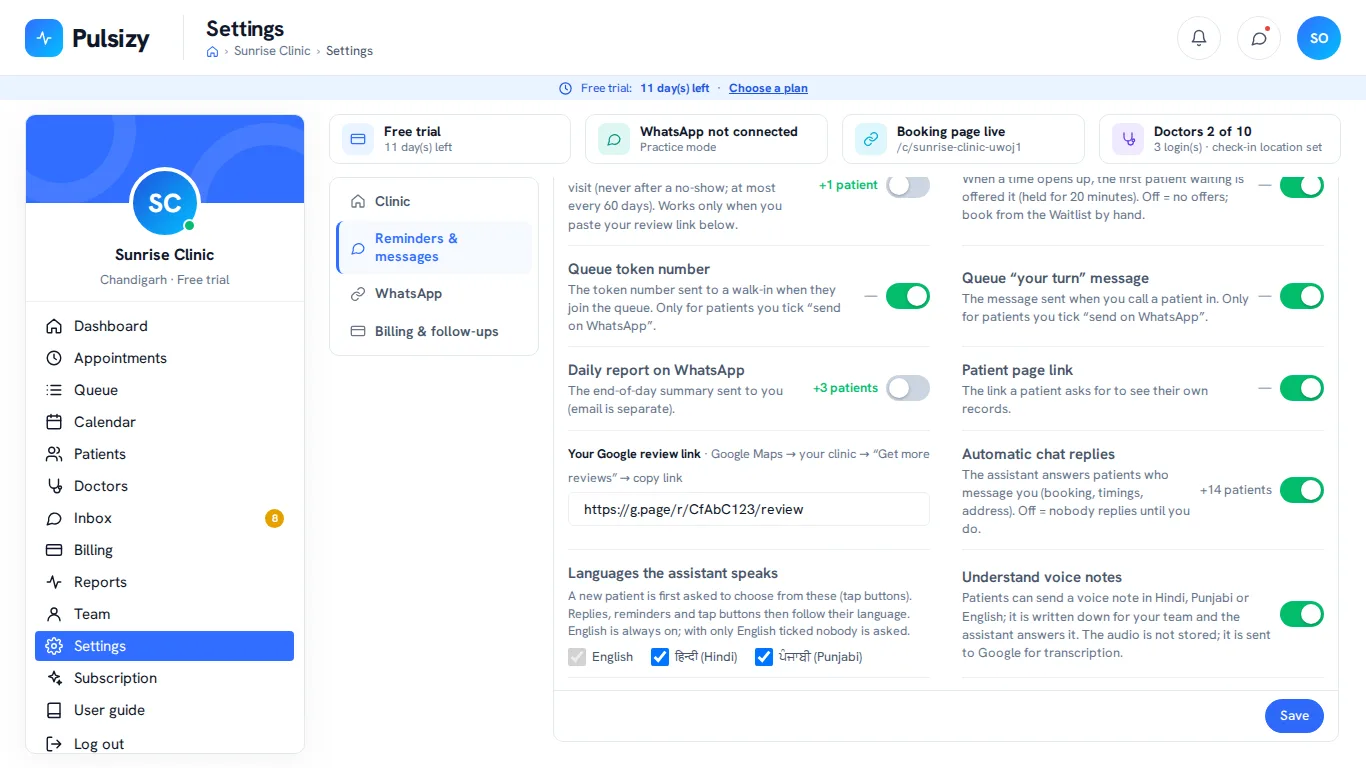
Settings → Reminders & messages → Languages the assistant speaks. English is always on; with only English ticked nobody is asked.
What is translated
- Understanding: days (
कल
,ਪਰਸੋਂ
), times (शाम 6 बजे
,साढ़े पाँच
,ਪੌਣੇ ਛੇ ਵਜੇ
), numbers in words and in Hindi / Punjabi digits, yes / no, cancel, reschedule,my appointments
, timings, fees and address. Doctor names typed in Hindi or Punjabi letters (शर्मा
,ਸ਼ਰਮਾ
) match the doctor you entered in English. - Replying: booking, reschedule, cancel, check-in, waitlist, queue token, fees, timings, address, prescription and bill messages, your clinic's name, doctor names and times stay as you entered them; the words around them are translated. Dates use Hindi / Punjabi day and month names.
- Safety words:
STOP
and emergency words (सांस नहीं
,ਸਾਹ ਨਹੀਂ
…) work in all three languages. Emergencies are never handled by the bot. - Reminders and other messages sent by Pulsizy: in the patient's language while WhatsApp's 24-hour window is open. Outside it they need approved templates, see Buttons and templates.
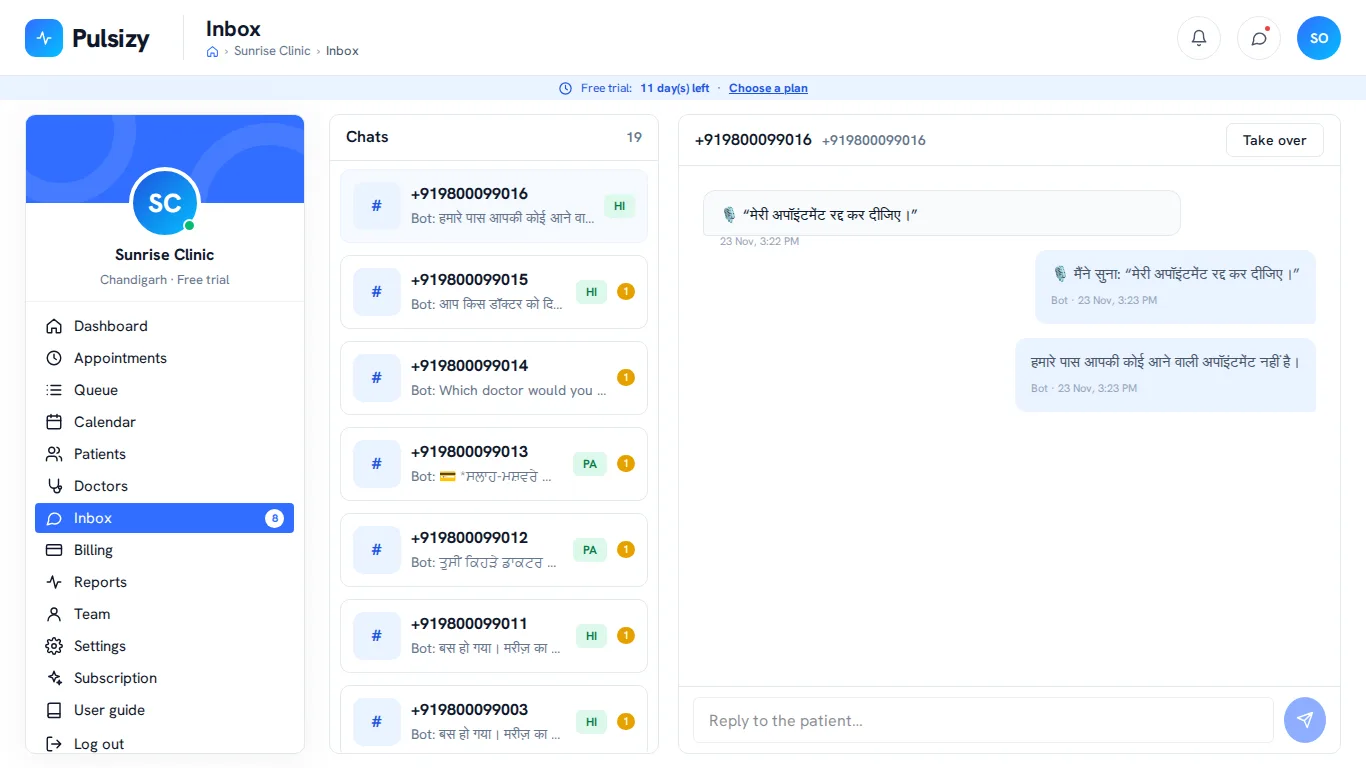
- Your Inbox shows a small HI or PA badge on each chat, so you know which language to reply in.
Voice notes
Many patients would rather speak than type. A patient can send a voice note in Hindi, Punjabi, English or a mix, and Pulsizy:
- Writes it down. The words appear in your Inbox as 🎙️ “…” next to the patient's name.
- Tells the patient what it heard: 🎙️ I heard: “…” (in their language), so a mishearing is spotted at once.
- Answers it exactly like a typed message: shows free times, books, answers fees and timings and so on.
- Emergencies: the spoken words are checked for emergency wording (
chest pain
,सांस नहीं
…) and, if found, the chat is flagged to your team and the patient is told to call emergency services. - Taken over? If a person has taken over the chat, the words are written down in the Inbox for your team and the assistant stays silent.
- Could not hear it? If a note is too long, too noisy or cannot be opened, the patient is asked to send a shorter one or to type.
- Limits (to keep costs predictable): 8 voice notes per patient per hour, 300 per clinic per day. Over the limit, the patient is told to type instead.
- Privacy: the sound itself is not stored by Pulsizy. It is sent to Google's speech service only to be written down, and only the words are kept in the chat, like any message. You can turn voice notes off in Settings → Reminders & messages → Understand voice notes; add a line about it to your clinic's privacy notice if you wish.
21Buttons and templates: how messages go out
WhatsApp has two rules that decide what a message can look like. Knowing them explains why some messages have buttons, why some are worded the same for everyone, and why a new message type sometimes takes a day or two.
The patient wrote to you in the last 24 hours
The window is open. Pulsizy can send any text, with tap buttons or a list built on the spot: the language choice, the menu, yes / no, times, confirm / reschedule / cancel. No approval is needed and the words can be anything.
You (or Pulsizy) write first, or it has been over 24 hours
The window is closed. WhatsApp only allows a pre-approved template: fixed wording with blanks for the patient's name, doctor, clinic and time, and (optionally) fixed quick-reply buttons.
Inside the 24-hour window: real buttons, any wording
- A tap is the same as typing the word: the assistant reads it and answers. In Hindi and Punjabi the button says पक्का करें / ਪੱਕਾ ਕਰੋ and so on, and the assistant understands those taps too.
- Up to 3 choices become buttons (each title up to 20 characters); 4 to 10 become a list opened with a Choose or Choose time button.
- Some messages carry a link button (for example to open a prescription or pay). Where the WhatsApp connection cannot show a link button, the link is put in the message text and WhatsApp makes it tappable.
- A choice that cannot be shown as buttons falls back to plain words (reply 1 or 2). Typing always works.
Outside the window: approved templates
Reminders, booking and confirmation notices, moved-visit notices, follow-up nudges and similar messages are sent when the patient has not written recently, so they must be templates. Pulsizy keeps this set for you on its shared WhatsApp number; you do not submit anything to WhatsApp yourself. Each one has fixed quick-reply buttons that are part of the template:
| Message | Buttons on it |
|---|---|
| Appointment reminder; moved-visit notice; follow-up booked or nudge | Confirm · Reschedule · Cancel |
| Booking made; booking confirmed | Check in · Reschedule · Cancel |
| Follow-up due tomorrow; follow-up released | Book appointment |
| Waitlist: a time opened up | Confirm · Cancel |
- A tap opens the window. The moment the patient taps a button (or replies), WhatsApp gives a fresh 24 hours, so everything after it (times, confirmation) is the normal free conversation.
- The wording is fixed by the approved template: only the blanks change. That is why the text of a reminder cannot be edited per clinic.
- Each language needs its own approval. WhatsApp approves a template per language. The English templates are in use. Hindi and Punjabi versions of the same templates are written and go live once WhatsApp approves them; until then a Hindi or Punjabi patient gets the English reminder when the window is closed, and the moment they tap or reply, the conversation continues in their language. After approval Pulsizy is switched over for you and nothing changes on your side.
- New kinds of message need approval (usually a day or two). Until then they may not go out outside the window; the patient still gets the information in their next conversation.
- Messages you switch off in Settings are never sent; messages you type yourself in the Inbox are not templates and need the window open.
22Inbox: chatting with patients yourself
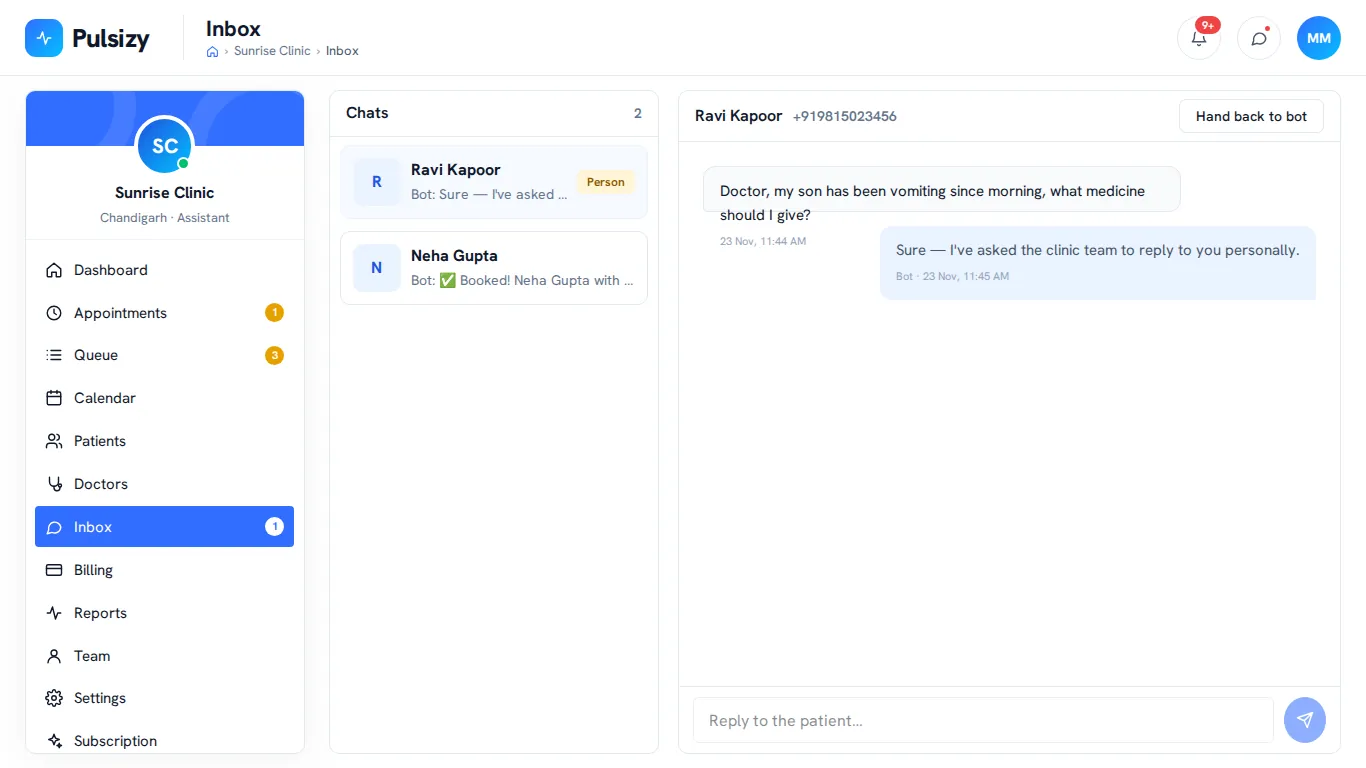
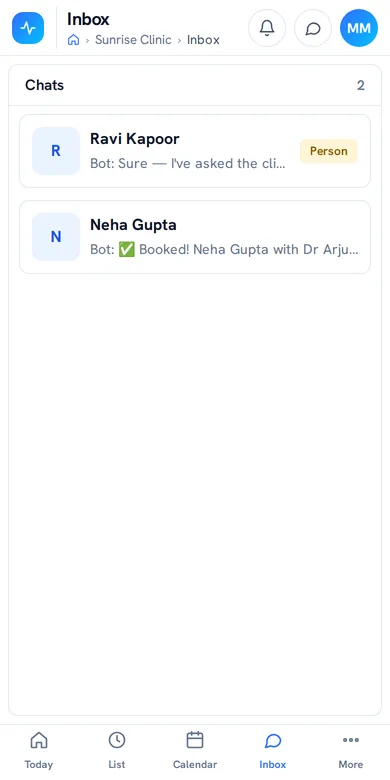
- Every WhatsApp conversation is listed. A badge shows unread chats, and chats that need a person are tagged Person.
- Open a chat to read the whole thread, including what the assistant said. A small HI or PA badge shows a patient who chose Hindi or Punjabi, so you can reply in their language. A 🎙️ line is a voice note, shown as the words that were heard.
- Take over pauses the assistant for that chat so you can reply yourself. Type in the box and press send. Hand back to bot lets it carry on.
- WhatsApp allows free-form replies only within 24 hours of the patient's last message. After that the box tells you so; use a template message (reminders, follow-ups) or wait for them to write again.
- Replies you type yourself are never blocked by the message switches.
23Automatic messages and reminders
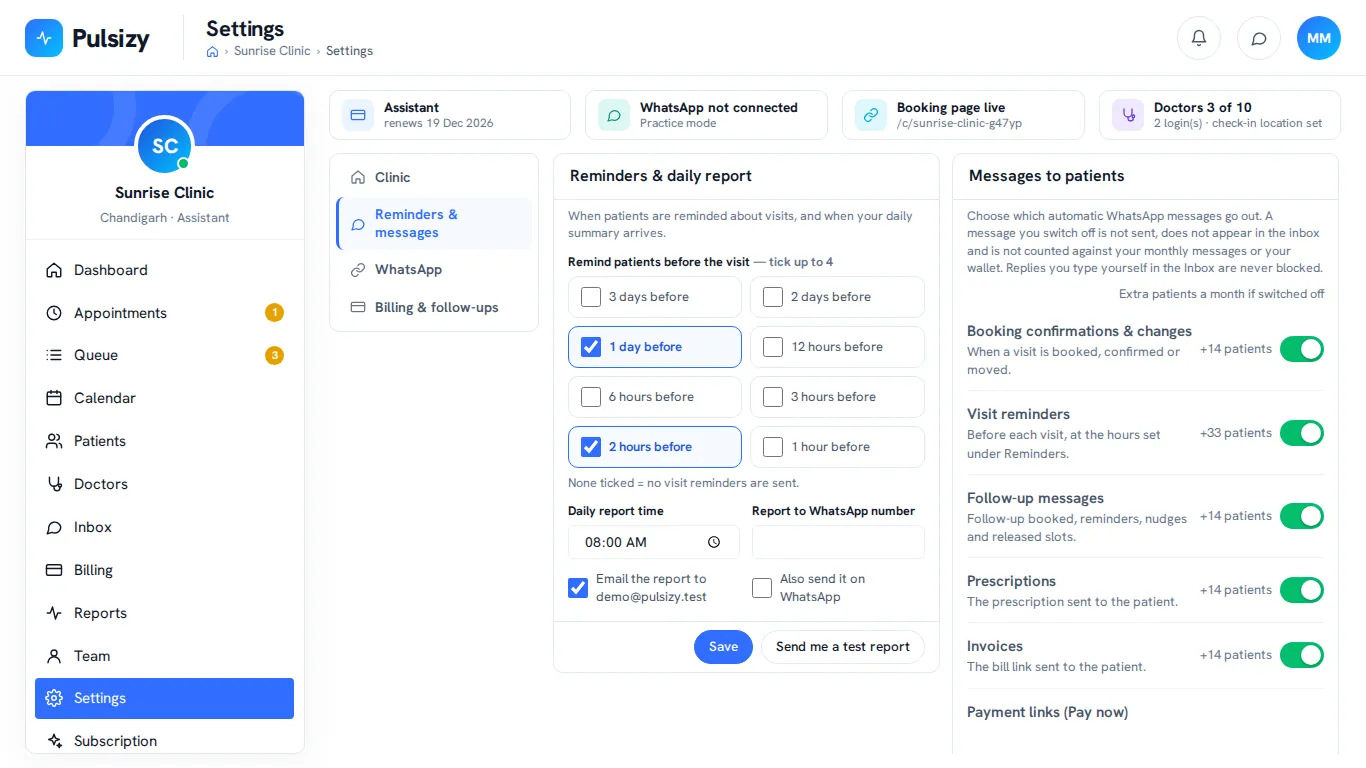
Settings → Reminders & messages controls everything Pulsizy sends on its own.
Visit reminders
Tick up to four times before a visit: 3 days, 2 days, 1 day, 12, 6, 3, 2 or 1 hour. The default is 1 day and 2 hours. A reminder is skipped if the booking was made inside that window, if the patient opted out, or if it is too late to be useful. Patients reply 1 / Confirm, 2 / Cancel or Reschedule. None ticked means no reminders.
Daily report
Choose the time (for example 08:00). Each day you get a summary of today's appointments (and how many were booked on WhatsApp), yesterday (booked, completed, no-shows, cancelled) and tomorrow's count, by email (to your clinic email) and, if you tick it, on WhatsApp to the number you enter. Send me a test report sends one now.
One switch per kind of message
A message you switch off is not sent, does not appear in the Inbox, and is not counted against your monthly messages or wallet. The “extra patients a month” figure beside each switch shows how many more patients your bundle would stretch to if it were off.
| Switch | What it controls |
|---|---|
| Booking confirmations & changes | When a visit is booked, confirmed or moved. |
| Video-consult link | The video link sent when a teleconsult is booked. Off = no link is sent; share it by hand. |
| Visit reminders | Before each visit, at the hours set under Reminders. |
| Follow-up messages | Follow-up booked, reminders, nudges and released slots. |
| Prescriptions | The prescription sent to the patient. |
| Invoices | The bill link sent to the patient. |
| Payment links (Pay now) | The UPI payment link sent to a patient with a bill to pay. Off = no link is sent and the Pay now page says to pay at the desk. |
| Google review request | Once, a couple of hours after a finished visit (never after a no-show; at most every 60 days). Works only when you paste your review link below. |
| Waitlist offers | When a time opens up, the first patient waiting is offered it (held for 20 minutes). Off = no offers; book from the Waitlist by hand. |
| Queue token number | The token number sent to a walk-in when they join the queue. Only for patients you tick “send on WhatsApp”. |
| Queue “your turn” message | The message sent when you call a patient in. Only for patients you tick “send on WhatsApp”. |
| Daily report on WhatsApp | The end-of-day summary sent to you (email is separate). |
| Patient page link | The link a patient asks for to see their own records. |
| Automatic chat replies | The assistant answering patients (booking, timings, address). Off = nobody replies until you do. |
Languages and voice notes
In the same tab, Languages the assistant speaks lets you tick Hindi and Punjabi beside English (English is always on). With only English ticked, nobody is asked to choose a language. Understand voice notes switches voice-note reading on or off. Both are explained in Hindi, Punjabi and voice notes.
Google review request
Paste your Google review link (Google Maps → your clinic → Get more reviews → copy link). Two hours after a visit is marked done, the patient gets one polite request, only between 9 am and 8 pm, never after a no-show or to someone who opted out, and at most once every 60 days per patient. Visits finished before you set the link are never chased.
Follow-up nudges
Tentative follow-ups get a nudge after about 24 hours without an answer and are released 12 hours before the slot (a visit you moved is nudged after about 3 hours and is never auto-released).
Why some messages use “templates”
WhatsApp lets a business send free-form text only within 24 hours of the patient's last message. For reminders and other messages outside that window, WhatsApp requires pre-approved templates. Pulsizy manages these for you. A new kind of message can take a day or two to be approved; until then it may not go out outside the 24-hour window, and the patient still gets the information inside the next conversation. Buttons and templates explains this, and the buttons that come with each template, in full.
24Public booking page and patient portal
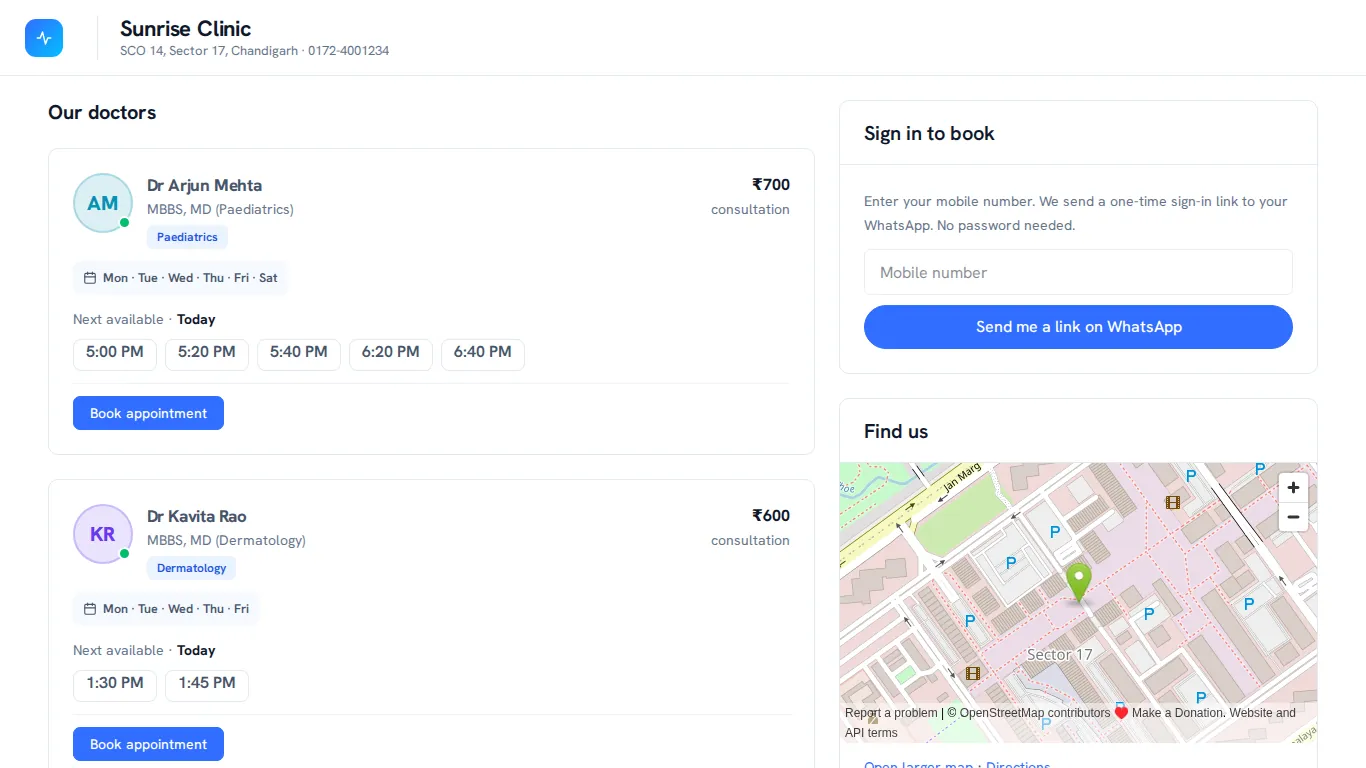
Switch on Settings → WhatsApp → Publish my clinic page to get a page at pulsizy.com/c/your-clinic showing your doctors, working days, next free times, fees and a map. Print the QR code from the same screen for your desk or door.
For the patient
- Press Book appointment or Sign in to book, enter their mobile, and a sign-in link arrives on their own WhatsApp. No password.
- Their patient page shows their ID, upcoming visits (with Confirm, Reschedule, Cancel), a week strip, their doctors, recent activity, and tabs for their appointments, prescriptions and invoices. They can book a new visit from it.
- Links to records are private and expire.
Needs WhatsApp connected, because the sign-in link goes by WhatsApp.
25Settings (owner)
Settings has four tabs and a status strip on top (plan and renewal date, WhatsApp state, public page, doctors used and whether a check-in location is set).
| Tab | What is inside |
|---|---|
| Clinic | Clinic profile and logo (printed on prescriptions and shown to patients). Booking rules: earliest booking (default 60 minutes from now), book up to N days ahead (default 30), patients can cancel on WhatsApp until N hours before (default 2). Check-in location (see Check-in). |
| Reminders & messages | Reminder times, daily report, one switch per message, Google review link, automatic chat replies, languages (Hindi / Punjabi) and the voice-note switch. See Messages and Languages. |
| Connection status, your clinic code and link, and Publish my clinic page with its QR code. On plans without WhatsApp it says so. | |
| Billing & follow-ups | Follow-up visits pricing steps. Invoice details: prefix, GSTIN, state (for GST), UPI ID, name on the UPI account, bank details and terms/footer printed on invoices. |
GST on invoices
Enter your GSTIN and State to issue tax invoices. If the patient's state is the same as yours it shows CGST + SGST, otherwise IGST. Without a GSTIN, invoices print as plain invoices.
26Team and logins
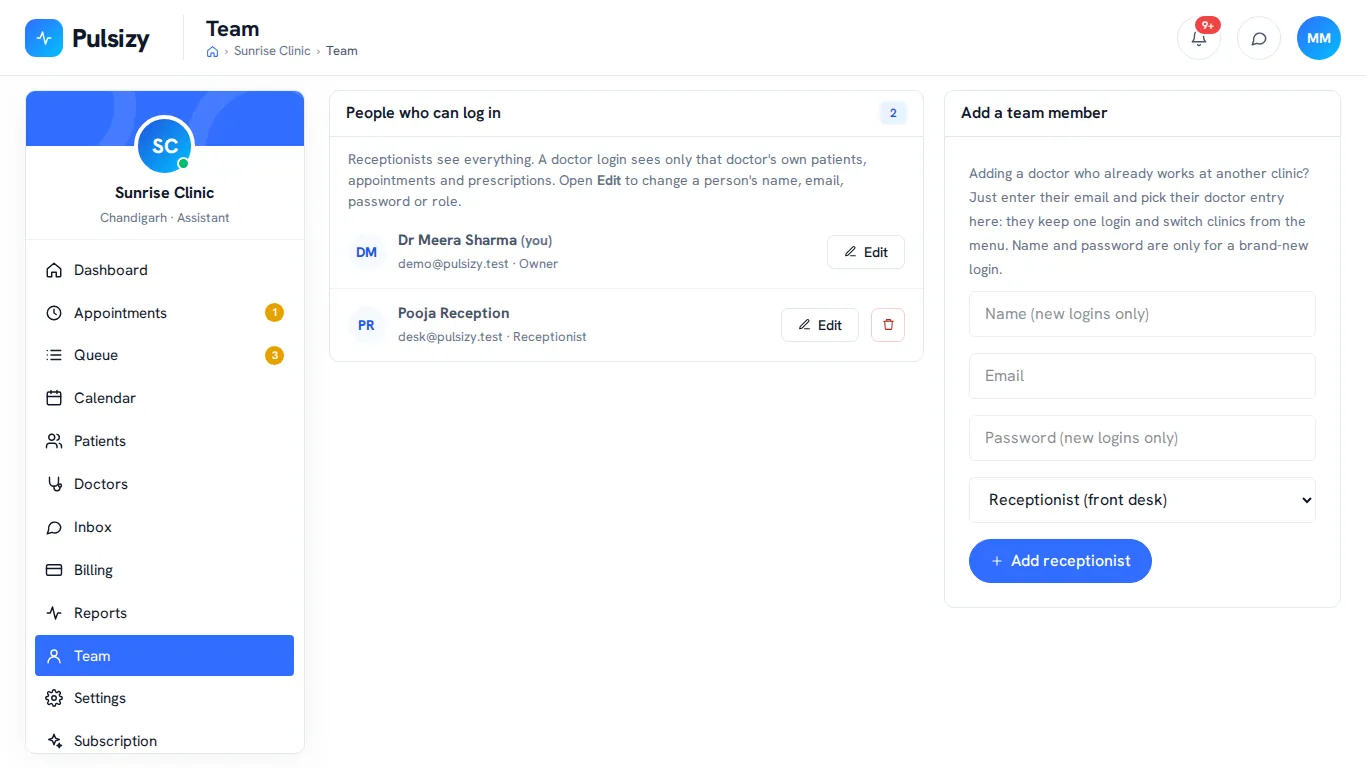
- Add a receptionist: name, email, a password, role Receptionist (front desk). They see everything except Reports, Team, Settings and Subscription.
- Add a doctor login: choose role Doctor and pick which doctor from your Doctors list. That login sees only that doctor's patients, appointments and prescriptions.
- Edit changes name, email, password or role. A person who also works at another clinic has one account, so only that person can change their own name, email and password; you can still change their role at your clinic. Changing your own email or password asks for your current password.
- Remove takes the person out of your clinic. Changing someone's email or password signs them out of their other sessions.
- The number of doctors is limited by your plan; logins are not limited.
27Subscription, wallet and receipts
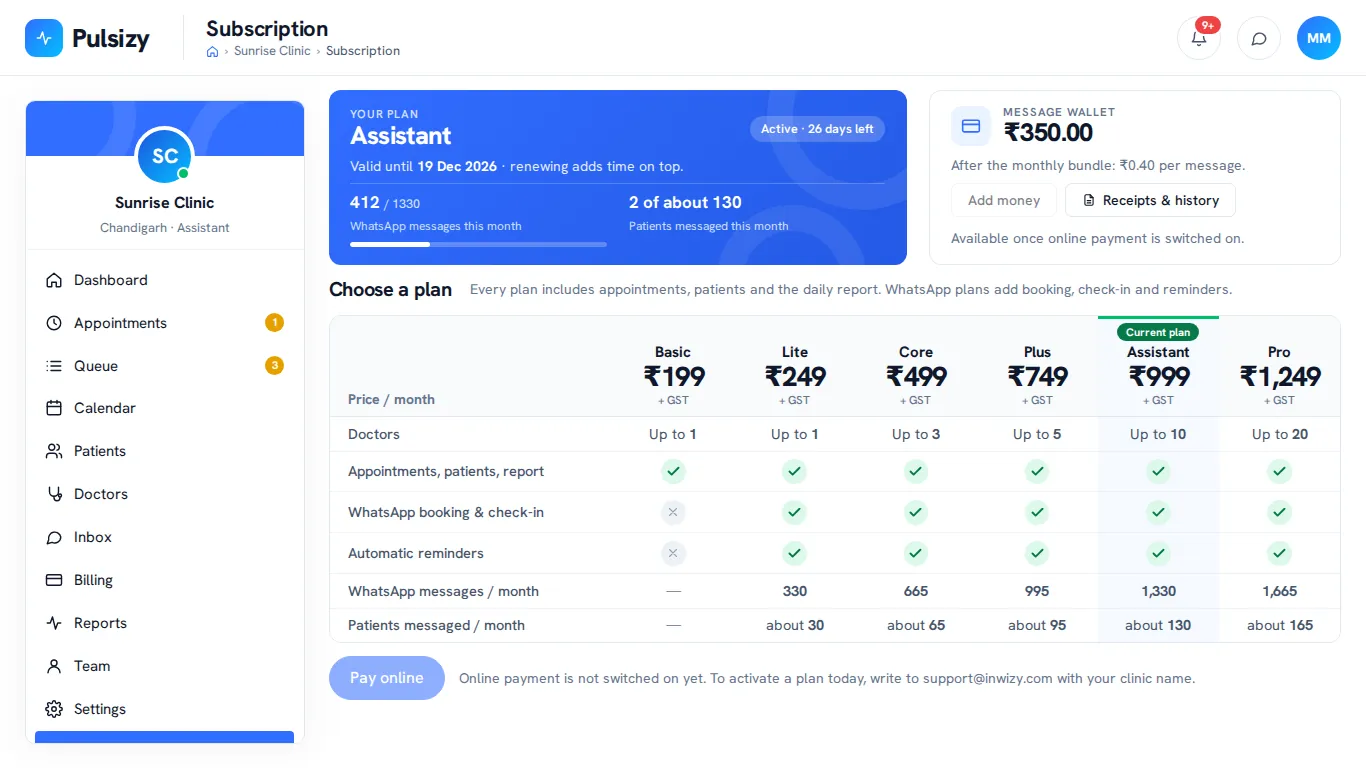
Subscription is what your clinic pays Pulsizy. It is separate from patient billing.
Plans
| Plan | Per month (+18% GST) | Doctors | Messages / month | About patients / month | |
|---|---|---|---|---|---|
| Basic | ₹199 | up to 1 | No | — | — |
| Lite | ₹249 | up to 1 | Yes | 330 | about 30 |
| Plus | ₹499 | up to 3 | Yes | 665 | about 65 |
| Growth | ₹749 | up to 5 | Yes | 995 | about 95 |
| Assistant popular | ₹999 | up to 10 | Yes | 1,330 | about 130 |
| Pro | ₹1,899 | up to 20 | Yes | 5,060 | about 505 |
Every plan includes appointments, patients, billing, reports and the daily report. WhatsApp plans add the booking assistant, check-in and reminders. You can buy 1, 3 or 12 months at the same monthly price. Renewing the same plan adds time to the end of your current period; switching plans starts the new one now.
Messages and the wallet
- Your plan includes a monthly bundle of messages that Pulsizy sends for your clinic (booking replies, confirmations, reminders, links, the daily report). Messages patients send to you are not counted.
- “About N patients” assumes roughly 10 messages per patient visit (booking chat, confirmation, two reminders, check-in, prescription and invoice links) plus 30 a month for the daily report. Switching off message kinds stretches the bundle further.
- After the bundle, messages are paid from your message wallet at ₹0.50 each. Top up from ₹200, ₹500, ₹1,000, ₹2,000 (GST is added; the wallet is credited with the base amount). If a message fails to send, it is refunded to the bundle or wallet.
- With no bundle and an empty wallet, Pulsizy cannot send messages. Dashboard and booking by your team keep working.
Paying and receipts
Press Choose plan or Add money and pay online (UPI, cards, net banking). The plan or wallet balance is credited as soon as the payment is confirmed. Receipts & history lists every payment with a receipt and, for plans, a GST tax invoice in the name and GSTIN you had saved at the time. If the payment button says online payment is not switched on, write to support@inwizy.com with your clinic name and the plan will be activated for you.
28Alerts: the bell
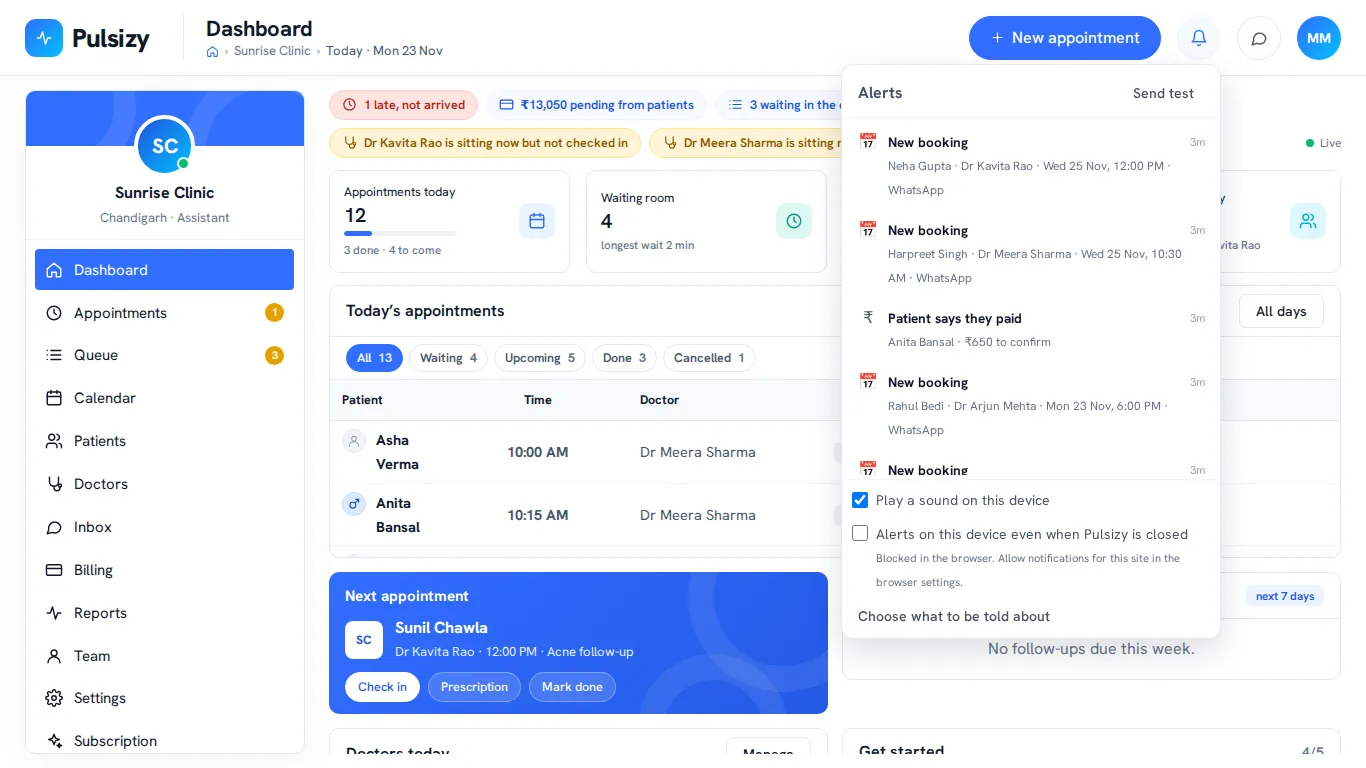
The bell tells you the moment something needs a person, without watching the screen. Each alert links to the right page.
| You can be told about |
|---|
| New bookings made by patients |
| Patient cancelled |
| Patient arrived (WhatsApp check-in) |
| Waitlist time taken |
| Patient asks for a person / writes while you are chatting |
| Patient says they paid |
- Play a sound on this device gives a chime while Pulsizy is open.
- Alerts on this device even when Pulsizy is closed turns on browser notifications on that phone or computer (allow notifications when asked). On iPhone, install the app to the Home Screen first.
- Choose what to be told about lets each person pick their own list. Doctors receive only bookings, cancellations, arrivals and waitlist news, never chats or payments.
- Send test checks that it works on your device.
29Privacy and patient data
- Each clinic sees only its own data. Another clinic cannot see your patients, even if the same patient is registered with both.
- Consent. A patient's first WhatsApp message shows a short privacy notice, and their consent and its source (WhatsApp, import, portal) are saved on their record. Imported patients carry your tick-box confirmation.
- Opt-out. A patient who sends STOP gets no automatic messages. Staff can still see the record.
- Access and erasure. Export a patient's data or erase them permanently from their record. Erasure is logged.
- Health record. Allergies, conditions and notes are stored encrypted; uploaded reports are kept privately, virus-scanned, and every view or removal is written to the audit log. They are included in a patient's export and erased with the patient.
- Voice notes. The audio is not stored by Pulsizy. It is sent to Google's speech service only to be written down; the words are kept in the chat like any message. You can switch voice notes off in Settings.
- Private links. Prescription, invoice and payment links are private to the patient; prescription and bill links expire. The waiting-room screen shows only token numbers.
- Security basics. Sign-in links and reset links expire; prescriptions and payment screenshots are stored privately; doctors are limited to their own patients. Use a strong password and give each person their own login.
- Pulsizy does not give medical advice and is not a substitute for a doctor's judgement; clinical decisions stay with your doctors.
30Troubleshooting and common questions
The assistant is not replying to patients.
Check Settings → WhatsApp: it must say connected, and your plan must include WhatsApp. Check Settings → Reminders & messages → Automatic chat replies is on. Check you have not taken over that chat in the Inbox (press Hand back to bot). Check you still have messages left in your bundle or wallet under Subscription.
A patient says they did not get a reminder.
Reminders are skipped when: the patient sent STOP (their record shows Reminders off); the booking was made inside the reminder window; the message switch is off; the bundle and wallet are empty; or WhatsApp is not connected. Open the patient's chat in the Inbox to see what was sent.
A time I expected is not offered when booking.
Free times come from the doctor's working hours minus leave, existing bookings, the earliest-booking rule (default 60 minutes ahead) and the book-up-to-N-days limit. Check the doctor's weekly hours (and that they are Accepting appointments), and whether the row is In clinic or Video. For a one-off exception tick Walk-in / outside the doctor's usual hours.
Check-in on WhatsApp keeps failing.
Set the desk location again from a phone at the desk (Settings → Clinic → Check-in location) and raise the allowed distance to 40–50 metres. Ask the patient to turn on precise location and send their own current location, not a place from the list. The desk can always check them in by hand.
A patient wrote in Hindi / Punjabi (or sent a voice note) and the answer was in English.
Check Settings → Reminders & messages → Languages the assistant speaks: Hindi and Punjabi must be ticked. The Inbox shows a HI / PA badge on chats that chose one; a chat with no badge has not chosen yet. The patient can type language
to choose again. Reminders sent when the 24-hour window is closed stay in English until WhatsApp has approved the Hindi and Punjabi templates (see Buttons and templates).
Voice notes get “Sorry, I can't listen to voice notes right now”.
Voice notes may be switched off (Settings → Reminders & messages → Understand voice notes), or the patient or clinic has reached the hourly or daily limit. Patients are asked to type instead, and you can read and answer them in the Inbox as usual.
A patient's buttons show as text (“reply 1 or 2”).
Buttons are used when WhatsApp can show them; otherwise the same choices are written out and typing works. See Buttons and templates.
The allergy warning did not appear.
It only knows what is recorded on the patient's page. If the banner says Allergies not recorded, ask the patient and add the allergy under Edit. A warning matches the medicine name and its drug family; an unusual brand name may not be recognised, so the doctor's judgement always comes first.
I cannot add another doctor.
Your plan limits the number of doctors (shown at the top of Doctors and in Settings). Upgrade under Subscription.
My trial ended and I can only see the Subscription page.
Choose a plan. Nothing was deleted; everything returns as soon as the plan is active.
A team member cannot see a screen.
That is by role (see Roles). Doctors do not get Inbox or Billing; receptionists do not get Reports, Team, Settings or Subscription. The owner can change a role under Team.
A patient paid by UPI but nothing shows.
A payment appears for confirmation only after the patient presses I have paid on their Pay now page. Otherwise check your UPI app or bank and record the payment yourself on the invoice (Add payment).
I moved a visit and the patient did not confirm.
A moved visit stays Awaiting confirmation until the patient replies 1, or the desk checks them in. Pulsizy nudges them but never releases a visit you moved.
Can I use my own WhatsApp number?
Clinics use Pulsizy's shared number with their own clinic code and link. Your personal or business WhatsApp is not touched.
I deleted something by mistake.
Voided invoices and payments are kept (marked void). Erasing a patient is permanent. If you are unsure, contact support before deleting.
Where is my data stored, and can I get a copy?
Patient data can be exported one patient at a time from the patient record; patients can be imported in bulk. For a full copy of your clinic's data, write to support.
Still stuck?
Email support@inwizy.com with your clinic name and, if possible, a screenshot of what you see. Pulsizy is a product of INWIZY GLOBAL VENTURES LLP.
31Glossary
- Bundle
- The messages included in your monthly plan that Pulsizy sends for you.
- Wallet
- Prepaid balance used for messages beyond the bundle.
- Slot
- One bookable time with one doctor; its length is the doctor's slot length.
- Tentative / Awaiting confirmation
- A time held for a patient who must still confirm.
- Token
- The queue number given at check-in or to a walk-in.
- 24-hour window
- WhatsApp allows free-form replies for 24 hours after a patient's last message; outside it only approved templates can be sent.
- Tap button (reply button)
- A button under a WhatsApp message that the patient taps instead of typing. Up to three show as buttons; more show as a list.
- Voice note
- A WhatsApp audio message. Pulsizy writes down what was said, shows it to your team and answers it.
- Template
- A pre-approved WhatsApp message format used for reminders and other business-started messages.
- Clinic code
- Your three letters and three digits (for example SUN119) that route a patient's WhatsApp message to your clinic.
- Practice mode
- WhatsApp not connected: Pulsizy works but sends nothing.
- FY
- Financial year, 1 April to 31 March (FY 2026-27 = 01/04/2026 – 31/03/2027).
- UTR / transaction ID
- The reference number of a UPI payment, shown in the payer's app.
No section mentions that. Try another word, or email support@inwizy.com.
Pulsizy is a product of INWIZY GLOBAL VENTURES LLP. Screenshots show a demonstration clinic with made-up people and numbers. Features and prices can change; plan tables on this page are read from the live plan list.